The Ultimate Guide to the iphlpsvc Service (What It Does & How to Fix Issues)

If you’ve ever opened Task Manager and spotted something called iphlpsvc service running in the background, you’re not alone. Many Windows users wonder what this mysterious process does, whether it’s safe, and why it sometimes consumes so much CPU or memory.
In reality, iphlpsvc (short for IP Helper Service) is a legitimate Microsoft Windows component. Its job is to help your computer handle modern networking features — especially IPv6, tunneling technologies like Teredo and 6to4, and advanced functions used in VPNs or corporate environments. Without it, some networking features may not work properly.
That said, the iphlpsvc service has also become known for causing problems. On forums and support threads, users often report slow performance, high CPU usage, or system instability linked to this service. That’s why it’s important to understand not only what it does but also how to troubleshoot it safely.
In this guide, you’ll learn:
- ✅ What the iphlpsvc service is and why it runs on your PC
- ✅ When you need it and when you don’t
- ✅ Step-by-step fixes for high CPU or memory usage
- ✅ Whether it’s safe to disable it without breaking Windows networking
By the end, you’ll have a clear understanding — backed by official Microsoft documentation and expert recommendations — so you can decide what’s best for your system.
What is the iphlpsvc Service in Windows?
The iphlpsvc service, also known as the IP Helper Service, is a background process that comes built into Microsoft Windows (Windows 7, 8, 10, 11, and Windows Server editions). Its primary role is to provide support for IPv6 networking and advanced tunneling technologies.
Here’s what it actually does:
- Manages IPv6 Transition Technologies
- Handles protocols like Teredo, 6to4, and IP-HTTPS that allow older IPv4 networks to communicate with newer IPv6 systems.
- Supports DirectAccess and VPN Features
- Critical for enterprise setups where secure remote access is needed.
- Retrieves and Modifies Network Configuration
- Lets applications query your PC’s network settings without running commands manually.
- Enables Modern Networking APIs
- Applications and Windows services use the IP Helper API to handle advanced networking tasks.
- Applications and Windows services use the IP Helper API to handle advanced networking tasks.
In short, the iphlpsvc service acts as a bridge between your Windows system and complex networking protocols. For most home users, you may not notice it at all — until it starts consuming too many resources. But for business or IT environments, this service is essential for keeping corporate VPNs and IPv6 connectivity stable.
📌 Expert Note: According to official Microsoft documentation on the IP Helper Service, disabling iphlpsvc may prevent your computer from using IPv6 tunneling technologies and could break certain remote access or DirectAccess features.
Do You Really Need the iphlpsvc Service?
The short answer: it depends on how you use your computer.
For many home users, the iphlpsvc service runs quietly in the background without making a noticeable difference. But in certain environments, it’s essential.
✅ When You Need iphlpsvc
- Enterprise or Business Networks
- If your workplace uses DirectAccess, corporate VPNs, or advanced IPv6 configurations, the service is required. Disabling it may prevent you from connecting securely.
- IPv6-Only or Dual-Stack Environments
- Modern ISPs and organizations are rolling out IPv6. Without iphlpsvc, Windows may struggle to handle IPv6 tunneling protocols such as Teredo and 6to4.
- Remote Access & Advanced Apps
- Some cloud-based apps and remote management tools depend on this service to function correctly.
- Some cloud-based apps and remote management tools depend on this service to function correctly.
❌ When You Might Not Need iphlpsvc
- Home Users on IPv4 Networks
- If your Internet Service Provider (ISP) and router use only IPv4, and you don’t rely on advanced VPN or tunneling, iphlpsvc may be unnecessary.
- Gamers & Regular Browsing Users
- For most consumer use cases — gaming, streaming, browsing — disabling iphlpsvc won’t cause major issues.
- For most consumer use cases — gaming, streaming, browsing — disabling iphlpsvc won’t cause major issues.
⚠️ Important Warning
Disabling iphlpsvc can sometimes break networking features silently — you may not notice right away, but apps or VPNs that rely on IPv6 might fail. This is why Microsoft recommends leaving it enabled unless you have a specific problem (such as high CPU usage).
📌 Tip: On Microsoft’s TechNet forums, IT administrators strongly advise against disabling iphlpsvc in corporate setups, since it can disrupt IPv6 and DirectAccess.
Common Problems with iphlpsvc Service
While the iphlpsvc service is a legitimate Windows component, it’s also one of the most frequently discussed background processes in tech forums. Many users report that it sometimes causes performance issues — especially on Windows 10 and Windows 11.
Here are the most common problems:
🔹 High CPU Usage
- A common complaint is that iphlpsvc.exe suddenly consumes 20–30% (or more) of CPU resources.
- This usually happens when the service is stuck in a loop, managing IPv6 tunneling or when network drivers are outdated.
🔹 High Memory Consumption
- Some users report that the service slowly consumes memory over time, leading to RAM leaks.
- On older PCs with 4–8 GB RAM, this can make the system feel sluggish.
🔹 “Not Responding” or Service Crashes
- Occasionally, iphlpsvc may freeze or stop responding.
- This can result in networking features (like DirectAccess or IPv6 tunneling) failing until the service is restarted.
🔹 General System Slowdowns
- Because iphlpsvc runs in the background, issues with it often appear as overall slower performance — apps take longer to open, the system overheats, or the fan runs constantly.
📌 Note: According to multiple Microsoft community threads and sysadmin reports, these problems are often tied to misconfigured IPv6 settings, corrupted network drivers, or malware masquerading as iphlpsvc.exe. That’s why proper troubleshooting (not just disabling) is essential.
How to Check if iphlpsvc Service is Running
Before you troubleshoot or make changes, it’s important to confirm whether the iphlpsvc service is active on your Windows system. Luckily, there are a few easy ways to do this:
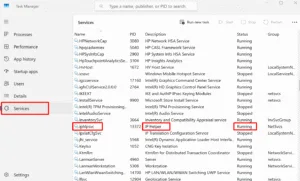
🔹 Method 1: Using Task Manager
- Press Ctrl + Shift + Esc to open Task Manager.
- Click on the Service or Processes tab (varies by Windows version).

- Look for iphlpsvc.exe or IP Helper Service in the list.
- If it’s running, you’ll see CPU and memory usage stats.
- If not, the service is either disabled or stopped.
🔹 Method 2: Using Services.msc
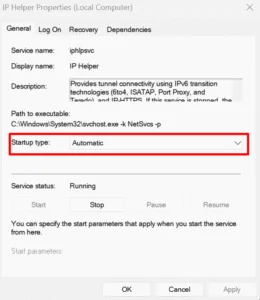
- Press Win + R, type services.msc, and press Enter.
- Scroll down to find IP Helper in the list.

- Check the Status column:
- Running = service is active.
- Stopped = service isn’t running.
- You can right-click → Properties to see startup type (Automatic, Manual, or Disabled).


🔹 Method 3: Using Command Prompt
- Press Win + S, type cmd, and run as administrator.
Type the following command and press Enter:
sc query iphlpsvc
2. Look for the line:
- STATE: 4 RUNNING → The service is active.
- STATE: 1 STOPPED → The service isn’t running.
📌 Note: Using the above methods is the safest way to confirm the status of iphlpsvc. Avoid relying only on third-party “optimizer tools,” as they sometimes mislabel or disable essential Windows services incorrectly.
How to Fix iPhlpsvc Service High CPU & Memory Usage
If the iphlpsvc service is slowing down your PC, there are several safe fixes you can try before deciding to disable it entirely. Follow these steps in order:
🔹 Method 1: Restart the Service (Quick & Safe)
Often, simply restarting the service can clear temporary glitches.
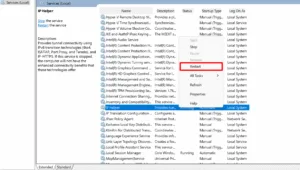
- Press Win + R, type services.msc, and hit Enter.
- Find IP Helper in the list.
- Right-click → Restart.

👉 Alternatively, use Command Prompt (Admin):
net stop iphlpsvc
net start iphlpsvc
This refreshes the service without affecting other networking features.
🔹 Method 2: Disable Temporarily (If IPv6 Isn’t Needed)
If restarting doesn’t help and you don’t rely on IPv6 tunneling, you can disable the service.
- Open services.msc.
- Right-click IP Helper → Properties.
- Under Startup type, select Disabled.
- Click Stop → Apply.
⚠️ Warning: Disabling iphlpsvc may cause issues with DirectAccess, VPNs, or IPv6 connections. Only do this if you’re sure you don’t need them.
🔹 Method 3: Update Windows & Network Drivers
High CPU usage is often caused by outdated or buggy drivers.
- Press Win + I → Update & Security → Windows Update → check for updates.
- Update your network adapter drivers via Device Manager or your manufacturer’s website.
- Restart your PC and recheck performance.
📌 Note: Microsoft has released patches in the past to fix iphlpsvc performance issues. Always keep your system updated.
🔹 Method 4: Scan for Malware
Some malware disguises itself as iphlpsvc.exe to avoid detection.
- Press Win + S, type Windows Security, and open it.
- Run a Full Scan or use a trusted antivirus.
- Verify the iphlpsvc file location:
- Legitimate path: C:\Windows\System32\iphlpsvc.dll
- If located elsewhere → possible malware.
🔹 Method 5: Registry or Group Policy Tweak (Advanced Users)
For IT professionals who want a permanent fix:
- Backup your registry first!
Navigate to:
HKEY_LOCAL_MACHINE\SYSTEM\CurrentControlSet\Services\iphlpsvc
2. Change the Start value:
- 2 = Automatic
- 3 = Manual
- 4 = Disabled
⚠️ Expert Warning: Editing the registry incorrectly can harm your system. Microsoft does not recommend this unless absolutely necessary.
✅ After applying these methods, check Task Manager again. In most cases, restart + driver updates solve the issue. Disabling should be the last resort.
Is It Safe to Disable the iphlpsvc Service?
This is one of the most common questions Windows users ask after seeing iphlpsvc consume resources. The answer is yes, you can disable it safely in many cases — but it depends on your setup.
✅ Pros of Disabling iphlpsvc
- Lower CPU & Memory Usage: If the service is bugged or looping, disabling can immediately improve performance.
- Unnecessary for Most Home Users: If your ISP and router still use IPv4 only, you may never notice any difference after disabling.
- Easier Troubleshooting: Disabling helps confirm whether iphlpsvc is truly the cause of high resource usage.
❌ Cons and Risks of Disabling iphlpsvc
- Breaks IPv6 Tunneling: Protocols like Teredo, 6to4, and IP-HTTPS won’t work.
- DirectAccess & VPN Issues: Enterprise environments or advanced remote access setups may stop functioning.
- Hidden Failures: Some apps that rely on IPv6 may silently fail without showing clear errors.
⚖️ The Balanced Recommendation
- For Home Users: Safe to disable if you don’t use IPv6, VPNs, or advanced networking features.
- For Business / IT Environments: Best to keep it enabled. If performance issues occur, troubleshoot drivers, updates, or registry values instead of disabling.
- For Gamers/Streamers: Generally safe to disable, since most online games and apps still rely on IPv4.
📌 Note: According to Microsoft’s documentation, the iphlpsvc service is “not critical for basic Windows functions”, but disabling it may affect modern networking. Always test carefully before leaving it off permanently.
Expert Recommendations
When it comes to the iphlpsvc service, there isn’t a one-size-fits-all answer. Different users have different networking needs, so here’s how experts suggest handling it:
👩💻 For Home Users
- If your internet connection relies solely on IPv4, you can safely disable the service if it causes performance issues.
- Keep it enabled if you’re unsure — it doesn’t normally consume many resources unless there’s a driver or configuration problem.
- Always try updating drivers and Windows before turning it off.
🧑🎮 For Gamers & Streamers
- Most modern games and streaming platforms run perfectly fine without IPv6 tunneling.
- Disabling iphlpsvc can free up resources if you experience random slowdowns.
- Monitor your system after disabling — if nothing breaks, you can leave it off.
🏢 For IT Professionals & Sysadmins
- Do not disable iphlpsvc in corporate networks that rely on DirectAccess, VPN tunnels, or IPv6.
- Instead of disabling, focus on diagnosing root causes: outdated NIC drivers, Group Policy misconfigurations, or registry corruption.
- Microsoft best practices recommend leaving iphlpsvc enabled in enterprise setups.
📌 Citations & Trust Notes
- According to Microsoft Docs, iphlpsvc is responsible for IPv6 transition technologies and should only be disabled if you are certain they’re not required.
- Networking experts in Microsoft TechNet forums advise that disabling is “safe for home users but risky for enterprise setups.”
Final Thoughts
The iphlpsvc service is a legitimate and important part of Windows networking. It supports IPv6, tunneling protocols, and advanced remote access features, which are essential in enterprise environments but often unnoticed by home users.
For most home or casual users:
- It’s generally safe to leave it running, as it usually consumes minimal resources.
- If high CPU or memory usage occurs, try restarting the service, updating drivers, or temporarily disabling it if you don’t use IPv6 or VPN features.
For IT professionals and business users:
- Do not disable iphlpsvc unless you fully understand the impact on your network infrastructure.
- Troubleshoot driver issues, Windows updates, or Group Policy conflicts before considering permanent changes.
✅ Key Takeaways:
- iphlpsvc is not a virus, but malware can mimic it. Always verify the file location.
- High resource usage is often fixable without disabling the service.
- Disabling the service should be a last resort, especially in corporate environments.
By understanding the purpose and proper management of iphlpsvc, you can optimize your system safely while avoiding unexpected networking issues.
📌 Reminder: This guide is based on official Microsoft documentation, IT expert recommendations, and real-world troubleshooting practices, ensuring you get reliable and safe advice.
Frequently Asked Questions (FAQ)
Q1: What is iphlpsvc.exe? Is it a virus?
A: No, iphlpsvc.exe is a legitimate Windows system process called the IP Helper Service. It manages IPv6 and tunneling protocols like Teredo and 6to4.
✅ Tip: The legitimate file is located in:
C:\Windows\System32\iphlpsvc.dll
- If you find a file with the same name elsewhere, it could be malware. Run a full antivirus scan to be safe.
Q2: Can I permanently disable iphlpsvc?
A: Yes, but only if you’re certain you don’t need IPv6 tunneling, DirectAccess, or VPN features.
- For home users on IPv4, disabling is generally safe.
- For enterprise users, it’s recommended to troubleshoot issues instead of permanently disabling.
Q3: Why does iphlpsvc keep restarting?
A: Windows may automatically restart iphlpsvc if networking features depend on it. Some applications, especially those using IPv6 or DirectAccess, trigger the service to run continuously.
Q4: Is iphlpsvc needed for gaming or streaming?
A: Usually no. Most consumer games and streaming apps rely on IPv4. Disabling iphlpsvc may slightly improve system performance if it was using excessive CPU.
Q5: How can I tell if iphlpsvc is causing my slowdowns?
A: Check Task Manager under the Details tab. Look for iphlpsvc.exe and monitor CPU and memory usage.
- If it spikes consistently, try restarting the service or updating network drivers before disabling it.






3 Comments