What Is iphlpsvc? The Complete Guide to Windows’ IP Helper Service (Safe to Disable?)

Introduction: What is iphlpsvc and why do You See It Running
If you’ve ever opened Task Manager and spotted something called iphlpsvc.exe (also known as IP Helper Service), you might have wondered what it actually does and whether it’s safe.
The truth is — iphlpsvc is a legitimate Windows service that helps your computer communicate over modern IPv6 networks and tunnels. It’s used by features like DirectAccess, VPNs, and certain apps that depend on advanced networking.
However, many users report high CPU or memory usage caused by iphlpsvc. In this complete guide, you’ll learn what it does and what is iphlpsvc, whether you can safely disable it, and how to fix related performance issues — all in simple, step-by-step language.
⚙️ What is iphlpsvc (IP Helper) in Windows?
iphlpsvc stands for Internet Protocol Helper Service. It’s a background process developed by Microsoft that allows Windows to support IPv6 transition technologies like:
- Teredo Tunneling
- 6to4
- ISATAP
- IP-HTTPS
These are tools that help older systems communicate using newer IPv6 protocols — especially when your ISP or router doesn’t natively support IPv6.
🧩 Key Responsibilities of iphlpsvc:
- Reads and modifies network configuration.
Apps and drivers use IP Helper APIs to detect or adjust network settings.
- Supports IPv6 tunneling technologies.
Crucial for VPNs, DirectAccess, and some remote connection tools.
- Notifies applications about IP changes.
Keeps your system stable when network configurations change.
💡 In short: iphlpsvc ensures your PC’s internet and network services run smoothly across both IPv4 and IPv6 networks.
🛡️ Is iphlpsvc Safe or a Virus?
Yes, it’s completely safe.
The genuine file iphlpsvc.dll or iphlpsvc.exe is part of the official Windows operating system, located in:
C:\Windows\System32\
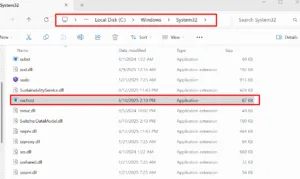
However, if you find iphlpsvc.exe anywhere else, especially in folders like Downloads or Temp, it could be malware impersonating the Windows process.
✅ To stay safe:
- Run Windows Defender or any trusted antivirus scan.
- Check file location via Task Manager → Right Click → Open File Location.
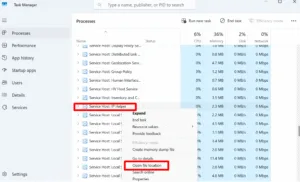
⚠️ Can You Disable iphlpsvc?
You can disable iphlpsvc if you don’t use IPv6 tunnels, VPNs, or DirectAccess. For most home users, it’s optional.
🧠 When It’s Safe to Disable:
- You use normal home Wi-Fi or Ethernet (IPv4 only).
- You don’t use corporate DirectAccess or advanced VPN setups.
- You notice CPU or memory spikes from iphlpsvc.
❌ When NOT to Disable:
- You’re part of a company network using DirectAccess or IP-HTTPS.
- You use IPv6-dependent applications.
- Your VPN provider explicitly requires IPv6 tunneling.
⚡ Disabling iphlpsvc can sometimes improve system performance, but it may also break IPv6 connectivity for specific apps.
🧰 How to Stop or Disable iphlpsvc Safely (Step-by-Step)
🛑 Temporarily Stop the Service
PowerShell:
# Run PowerShell as Administrator
Stop-Service -Name iphlpsvc -Force
or
Cmd:
net stop iphlpsvc
🚫 Permanently Disable iphlpsvc
Cmd:
sc config iphlpsvc start= disabled
or via PowerShell:
Set-Service -Name iphlpsvc -StartupType Disabled
🔁 Re-enable Later (Default)
Cmd:
sc config iphlpsvc start= auto
net start iphlpsvc
or PowerShell:
Set-Service -Name iphlpsvc -StartupType Automatic
Start-Service -Name iphlpsvc
💬 Pro Tip: Always create a System Restore Point before disabling system services.
🧪 How to Check if iphlpsvc Is Causing High CPU or Memory Usage
If your PC is lagging or Task Manager shows iphlpsvc consuming high CPU, follow these checks:
- Press Ctrl + Shift + Esc → Services tab → find iphlpsvc.
- Open Resource Monitor and sort by CPU/Memory.
- Run Event Viewer → Windows Logs → System to see related errors.
- Identify linked services like WinHttpAutoProxySvc or WMI.
If the spikes happen constantly, it’s usually caused by:
- A faulty driver or network adapter
- A VPN or tunneling software conflict
- Excessive WMI queries by other apps
🧹 Fix: iphlpsvc High CPU or Memory Usage
Here’s how to fix it step-by-step:
1️⃣ Restart the Service
Open CMD and type:
net stop iphlpsvc
net start iphlpsvc
2️⃣ Reset the Network Stack
Cmd:
netsh int ip reset
netsh winsock reset
ipconfig /flushdns
3️⃣ Run System Repairs
Cmd:
sfc /scannow
DISM /Online /Cleanup-Image /RestoreHealth
4️⃣ Check for VPN or Tunneling Apps
Uninstall or disable:
- Teredo / 6to4 adapters
- Third-party VPN clients
- VirtualBox / Hyper-V adapters
5️⃣ Disable IPv6 if Not Needed
Go to:
Control Panel → Network and Internet → Network Connections → Right-click your network → Properties → Uncheck IPv6.
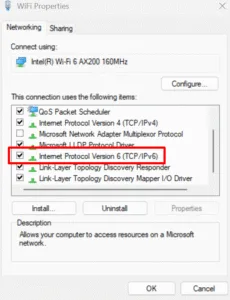
Restart your PC and check if performance improves.
📈 Should You Keep iphlpsvc Running?
If your system is stable and it’s not using much CPU, keep it running.
It ensures compatibility with modern IPv6 and remote access technologies.
Only disable it when:
- You’re troubleshooting performance issues, or
- You’re certain you don’t need IPv6 or DirectAccess.
✅ Key Takeaways
| Situation | Recommendation |
| Normal home user | Safe to disable |
| Using DirectAccess or IPv6 VPN | Keep enabled |
| High CPU usage | Restart or reset the network stack |
| Malware suspicion | Check the file path and scan the PC |
🧠 Summary:
iphlpsvc (IP Helper) is not harmful — it’s a Windows service that ensures smooth IPv6 operations. Disabling it is optional but safe for most home users. Always verify location, monitor performance, and follow safe commands.
Conclusion
The iphlpsvc (IP Helper) service is a small yet important Windows component. It manages IPv6, tunnels, and network transitions that most users never notice — until it starts causing issues.
With the guide above, you now know:
- What iphlpsvc does
- Whether you can disable it safely
- How to fix high CPU or memory problems
If you manage multiple systems or networks, keep iphlpsvc running.
For home PCs, disable it if it slows your computer — it won’t harm normal browsing or apps.
FAQs About What is iPhlpsvc
Q1. What is iphlpsvc used for?
A: It helps Windows support IPv6 and network tunnels (Teredo, 6to4, ISATAP, IP-HTTPS) and enables apps to manage IP configurations dynamically.
Q2. Is iphlpsvc safe to disable?
A: Yes, but disable only if you don’t rely on IPv6 tunneling or enterprise VPNs.
Q3. Is iphlpsvc a virus?
A: No. It’s a legitimate Windows process. If located outside C:\Windows\System32, scan for malware.
Q4. Why is iphlpsvc using CPU or memory?
A: Usually due to faulty drivers, VPN clients, or excessive WMI queries. Restart or reset the network to fix it.
Q5. How to restart iphlpsvc?
A: Open Command Prompt (Admin) and type:
net stop iphlpsvc
net start iphlpsvc






One Comment