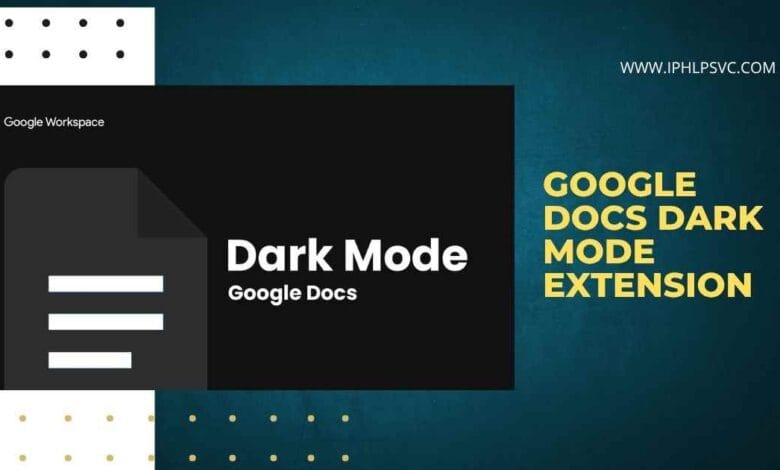
If you spend long hours writing editing or reviewing documents in Google Docs a google docs dark mode extension can make a meaningful difference This refined guide explains what dark mode does why it helps how to choose and configure an extension how to avoid common pitfalls and how to keep your documents accurate and safe The article is written to be practical trustworthy and easy to follow so you can pick the best option and start working more comfortably today
A google docs dark mode extension applies a darker theme to Google Docs inside your browser which reduces glare and lowers visual strain This is especially helpful at night or in low light environments For most people a configurable extension that supports site specific rules and selective image protection strikes the best balance between comfort and document fidelity If privacy matters choose an open source extension with clear permissions and active maintenance
Why dark mode matters for long form work
Reduced eye strain and improved comfort
Bright white backgrounds create a large contrast with surrounding room light which increases visual effort during prolonged editing sessions A darker interface reduces this contrast and can decrease the sensation of eye fatigue That makes it easier to sustain focus and to write for longer periods without needing frequent breaks
Practical benefits for low light and shared spaces
Working late at night in shared spaces can be disruptive A darker interface is less intrusive to others and can be gentler on your own sleep cycle by reducing exposure to strong blue light in the evening
What you may need to trade off
Dark mode changes how colors and contrast appear Images charts and some embedded content may look different Color inversion can make images appear odd and charts may lose contrast For tasks that require precise color fidelity you may need to disable the extension temporarily or use selective exceptions
How Google Docs handles dark mode across devices
Mobile behavior
On mobile devices some Google apps follow system level theme settings and offer a native dark theme If you primarily use Google Docs on mobile check the app settings and your device theme first before adding extensions
Desktop behavior
On desktop browsers Google Docs does not provide a built in universal dark theme for the editor so browser extensions are the practical solution Desktop users should evaluate extensions for capability privacy and compatibility
Types of google docs dark mode extension options
Dedicated google docs theme extensions
These extensions focus specifically on Google Docs and provide a simple toggle to change the document canvas and the interface They are typically easy to set up and are good for users who want a minimal experience
Universal dark mode extensions
Universal extensions apply dark themes across many websites and apps including Google Docs They often include fine control options such as brightness contrast sepia and site specific rules These are good if you want a consistent dark experience across multiple web services
Open source versus proprietary
Open source extensions allow code inspection and community review which improves transparency and trust Proprietary extensions may provide a more polished interface but require trusting the developer with requested permissions When privacy is important prefer open source tools that show their code and explain their privacy practices
What to look for when choosing an extension
Customization options
Choose extensions that let you adjust brightness contrast and color temperature This allows you to dial in settings that are comfortable for your eyes and suit your monitor
Site specific rules and exceptions
Good extensions allow you to enable or disable dark mode for specific websites or pages Use this to protect images charts or other elements that should not be filtered
Image protection and selective filters
Extensions that can exclude images from the dark filter preserve image quality and prevent awkward color inversions Use selective filters to invert only backgrounds while leaving images untouched
Performance and resource usage
Lightweight extensions that limit processing to specified domains will avoid slowing down your editor Test performance especially when working with large documents or many open tabs
Permission transparency
Extensions often request permission to read and change data on the pages you visit because they must rewrite style rules Review each permission and prefer extensions that explain why they need access and how they handle data
Maintenance and community trust
Prefer extensions with recent updates active issue tracking and user reviews that indicate continued maintenance Abandoned projects pose security and compatibility risks
Step by step install and initial setup
Install steps for common browsers
1 Open your browser add on or extension store
2 Search for the extension name and add it to your browser
3 Accept any permission prompts shown by the browser
4 Pin the extension to the toolbar for quick access
First time configuration checklist
1 Open a Google Docs document to test the extension
2 Activate the extension using its toolbar icon or menu
3 Start with moderate values for brightness and contrast
4 Enable site specific rules so Google Docs settings are isolated from other websites
5 If images look odd enable image protection or add exceptions for images
Recommended starting settings to try
Try brightness at 85 percent and contrast at 90 percent If your extension offers a warm tone or sepia try a low level to reduce blue light Increase or decrease settings until text looks natural and comfortable
How to preserve document formatting and image quality
Why images and charts can change
Most extensions apply CSS filters or overlay styles to the rendered page to create a dark look That process can invert or shift colors in images and in charts generated inside Google Docs
Practical fixes to protect visuals
1 Use extension settings to exclude images from the filter if that option exists
2 Add a site specific exception for the document when precise color matters
3 Convert critical charts to images before final export if color fidelity is essential
4 For final prints or exports disable the extension temporarily
Using Page Setup as a safe alternative
When you need the document canvas to appear dark for everyone change the page background color in Page Setup This results in a darker document without filtering images but it changes the document appearance for reviewers and collaborators
Privacy and security best practices
How to read permissions with purpose
If an extension requests permission to read and change all your data on websites this is a high level permission required to alter page styles Ask whether that permission is necessary for the extension capability and whether the developer documents how data is handled
Prefer open source or audited extensions
Open source extensions let security experts and users inspect the code This builds trust and often leads to faster fixes for security issues
Test with non sensitive documents first
When trying a new extension use a test document with no sensitive content This helps you observe behavior without exposing private information
Remove or disable extensions that behave oddly
If an extension performs unexpected actions disable it immediately then remove it from the browser Clear your cache and review open documents for anomalies
Comparison and selection guidance
For privacy focused users
Choose an open source extension with minimal permissions clear documentation and an active maintenance record This reduces the risk of undisclosed data access
For users who want maximum control
Pick a universal extension that supports per site rules granular brightness and contrast controls and selective image protection This gives you fine control across many web services
For users who want a simple one click toggle
Select a dedicated google docs theme extension with a straightforward toggle and minimal setup This allows fast activation without deep configuration
Troubleshooting common problems
Dark mode does not apply
1 Confirm the extension is enabled for the current site
2 Refresh the page and check the extension icon
3 Clear the browser cache and try again
4 Disable other theming extensions that might conflict
Images look inverted washed out or low in contrast
1 Enable image protection if your extension supports it
2 Add a per page or per site exception for the problematic document
3 Temporarily disable the extension for exporting printing or reviewing visuals
Printing and exporting look dark
Browser prints can capture the dark filtered view If you need a standard bright print disable dark mode for the document or set the page background to white before printing
Extension causes slow performance
1 Limit the extension to run only on specified domains
2 Close unnecessary tabs or temporarily disable the extension for large export tasks
3 Test in an incognito window with extensions disabled other than the one you are trying
Accessibility and readability guidance
Contrast checks and font settings
Dark mode can reduce perceived contrast Use larger font sizes and slightly increased line height for sustained reading and editing Confirm body text contrasts well against the background
Test across displays
Monitors and laptops show dark themes differently Test your settings on at least one other screen and on a mobile device if possible
Assistive technology compatibility
If you use screen readers or rely on high contrast modes ensure the extension does not interfere Test assistive features and provide alternative instructions for collaborators who need different settings
Alternative approaches if you avoid extensions
Change page background color in Page Setup
Set a darker page background to darken the document canvas without applying a page wide filter This affects all viewers so communicate the change to collaborators
Use system or browser level themes
Some browsers and operating systems allow reader modes or dark themes that reduce brightness for many text heavy pages Consider using reader modes for distraction free writing
Use a dedicated writing application
Local writing tools often include robust dark modes and offline workflows Copy content into Google Docs for collaboration and final formatting when ready
Final recommendation
If you want a simple instant toggle choose a dedicated google docs theme extension Use it with site specific exceptions and image protection enabled when needed If you prioritize privacy and transparency choose an open source extension with a clear permission explanation and active updates
For the most control choose a universal extension that supports granular rules and per site settings Always test printing and exporting before finalizing important documents and periodically review extension permissions and updates.
Frequently asked questions
Will collaborators see my dark mode settings
No collaborators see documents in their own viewing environment Unless you change the page background collaborators will not see the dark theme applied in your browser
Will dark mode affect exports and PDF files
Dark mode sometimes affects exported files If the dark filter is active the exported file can capture the dark view For important exports disable the extension or verify the output before distribution
Is it safe to use a dark mode extension with sensitive documents
Extensions require broad permissions to alter page styles which can be sensitive If you work with confidential material prefer open source extensions with transparent policies and test with non sensitive documents first
Will dark mode save battery life
On some displays darker pixels use less power so dark mode can help battery life That benefit depends on your device display technology and usage patterns