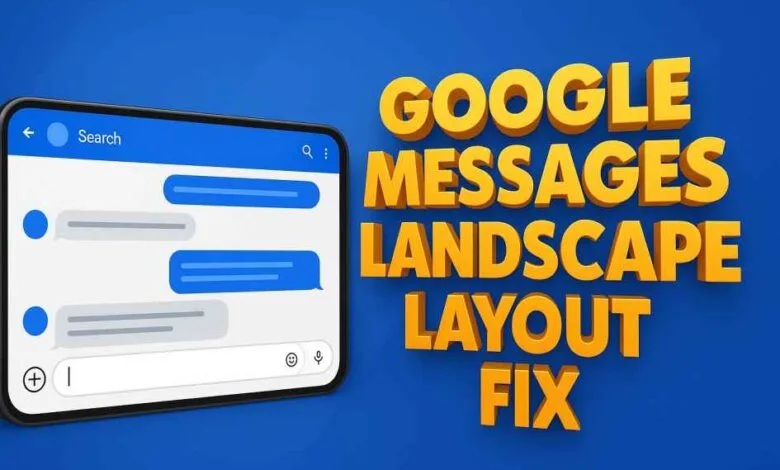
Google Messages is a core app for many people who rely on text and multimedia messaging every day. It is simple and fast for most users. Sometimes the layout in landscape orientation can become awkward or broken. Text may overlap. Buttons may hide. Conversation bubbles may move to the wrong side. These problems make using the app frustrating and slow.
This guide explains why the Google Messages landscape layout problem happens and how to fix it with clear step by step and deeper troubleshooting. It is written to be practical and friendly. It aims to help anyone restore a clean landscape layout and keep messages usable and reliable.
Second paragraph with quick reference table
Below is a compact table you can use as a quick checklist. Use it before trying the longer solutions. The table lists common symptoms, likely causes, and the fastest fixes to try.
| Symptom | Likely cause | Quick fix |
| Overlapping text and buttons in landscape | App cache corruption or layout engine glitch | Clear app cache and restart the app |
| Two column view not appearing | Display size or font scaling set too high | Reset display size and font to default |
| Keyboard pushing messages off screen | Keyboard setting or accessibility magnification | Try another keyboard or disable magnification |
| Message bubbles reversed or misaligned | Theme or layout resource conflict | Switch theme or enable default theme |
| App crashes when rotating | Corrupted app data or conflicting third party app | Force stop and test in safe mode |
| Media preview not resizing | Media loading bug or low memory | Clear cache and restart device |
Why the Landscape Layout Breaks in Google Messages

There is rarely a single cause for layout problems. Multiple subsystems interact. The app draws its interface using a layout engine. That engine depends on system settings. It also reads resources for fonts, paddings, and sizes. When something in that chain is out of expected range the layout may shift. Here are the most common root causes:
System display and font settings
Display scale and font scale are system level. They instruct apps how large text and UI elements should render. When scale is high the layout must reflow to fit. Some apps handle large scales gracefully. Others do not. Google Messages uses a flexible layout, but extreme scale values can push elements into unexpected positions.
Cached layout state and corrupted resources
Apps cache layout decisions to speed up rendering. If cached values become inconsistent with installed resources, the wrong layout can be applied. Clearing cache forces the app to rebuild layout data.
Keyboard and input method interactions
Third party keyboards may behave differently in landscape. Some keyboards take more vertical space or request different input modes. When a keyboard requests resizing the app must respond. The timing of the request sometimes confuses layout code.
Theme resources and styling conflicts
Theme changes and custom themes alter paddings and margins. A theme that changes message container padding can make bubbles overlap or overflow in landscape.
Memory pressure and race conditions
Low memory can force the system to unload resources while an orientation change is in progress. That creates transient layout errors or crashes. Race conditions in layout measurement code create non deterministic layout failures.
Immediate fixes you can try right now
If you need a working interface quickly try these fast fixes in the given order. Do one step then test before moving on.
1 Clear app cache and restart the app
- Open device settings.
- Locate Apps or Application manager.
- Tap Google Messages.
- Choose Storage.
- Tap Clear cache.
- Force stop the app and reopen it.
Why this helps: Clearing the cache removes stale layout resources so the app can re measure and redraw everything fresh.
2 Restart your device
A full restart clears system level state. It also resets memory and input services. Many rotation and layout problems vanish after a reboot.
3 Check display size and font size
- Open Settings.
- Find Display settings.
- Look for Display size or Font size.
- Set both to recommended or default.
- Test Google Messages in landscape.
Why this helps: Restoring default scales ensures UI elements have expected space to reflow.
4 Test using a different keyboard
Some keyboards change window sizes unexpectedly. Try the default keyboard or another keyboard app to see if the problem persists.
5 Turn off landscape auto rotation and toggle it on again
- Open Quick Settings.
- Disable auto rotation.
- Wait a few seconds.
- Enable auto rotation again.
- Rotate device and test.
Why this helps: Toggling forces the orientation manager to re initialize rotation listeners.
Deeper troubleshooting when immediate fixes do not work
If the quick steps fail, move on to more thorough investigations. These steps take more time but are safer than wiping data.
Check for app updates and system updates
- Open your app store.
- Search for Google Messages.
- Update if an update is available.
- Also check system updates in settings.
Why: Developers release layout and orientation fixes. If a layout bug is known an update often resolves it.
Inspect accessibility settings
Accessibility features change how the screen and inputs behave. Check for the following and temporarily disable them to test:
- Magnification gestures.
- Large text options.
- Display inversion.
- Accessibility services that overlay or inject content.
Disabling these features helps isolate whether an accessibility service is causing layout shifts.
Test in Safe Mode
Safe mode disables third party apps temporarily. If the issue disappears in safe mode, a third party app is likely interfering.
How to enter Safe Mode
- Press and hold the device power button.
- When the power menu appears, press and hold Power off option until a Safe Mode prompt appears.
- Confirm and boot into Safe Mode.
- Open Google Messages and test landscape.
If safe mode fixes the layout then uninstall recently added apps or those that can alter input or screen overlays.
Clear app data as a last resort
If the problem persists, clearing app data resets the app to a fresh installation state. This deletes local settings and message attachments stored only in the app. Do not clear data if you do not have SMS backup.
- Go to Settings.
- Apps.
- Google Messages.
- Storage.
- Clear data.
- Reopen app and sign in if needed.
Before clearing app data consider backing up important messages.
Advanced fixes for power users
If you are comfortable digging deeper, try the following methods. They require more technical steps but can solve stubborn layout bugs.
Use developer options to simulate different display cutouts and densities
Developer options contain tools that let you test different screen shapes and densities. These change how apps measure the layout.
- Enable Developer options if not enabled.
- Open Developer options.
- Find Smallest width or Display density settings.
- Change values carefully and test rotation.
- Revert changes after testing.
Note: Changing these settings affects the whole system. Use caution and record original values so you can restore them.
Reset app preferences
- Open Settings.
- Apps.
- Menu and select Reset app preferences.
- Confirm.
This will restore default permissions and may clear a setting that prevents proper layout.
Inspect logs using adb
If you are comfortable with command line tools you can gather logs and search for layout or orientation errors. The key commands are:
- Connect the device to a computer with adb.
- Run adb logcat and filter lines for messages related to com google android sms or layout.
- Reproduce the layout issue while logcat runs and capture the output.
Logs often show stack traces or warnings from the layout measurement routine.
Try an older release of the app
If a recent app update introduced the issue you may be able to revert to a previous version. This requires obtaining an older apk and installing it after uninstalling updates. Only do this if you understand the security and compatibility risks.
Working around persistent layout quirks
Sometimes you cannot completely fix the layout because of an OS or theme conflict. In those cases use practical workarounds to restore usability.
Use portrait mode for heavy tasks
If landscape is unstable, rotate the device back to portrait when composing long messages, attaching media, or editing conversation details. Portrait layout tends to be more tested and stable.
Switch to a different messaging app
If landscape layout is making the app unusable consider using another trusted messenger temporarily. Make sure to export or forward any important SMS threads before switching.
Disable conversation effects and custom bubble style
If your app allows custom bubble shapes or conversation effects, revert to default style. Custom styles may rely on resources that do not handle landscape well.
Use single column layout
If two column layout is causing problems, force a single column view. Settings may exist to toggle this if your device or app offers it. If not available, reduce display scale to try to force single column rendering.
How to preserve messages and attachments safely
Before aggressive actions like clearing data or reinstalling, back up important conversations.
Back up SMS and MMS
- Use a third party backup app trusted by many users.
- Export selected threads and store the archive on cloud or PC.
- Verify archive integrity by restoring to a test device if possible.
Save media attachments
Manually save important photos or attachments to your gallery or cloud storage. Attachments stored only in app data will be lost when clearing data.
What to report if contacting support
If you need to contact support or file a bug report include clear reproducible steps. The better the bug report, the faster the engineers can fix it.
Include the following in your report:
- Device make and model.
- Android version name and build number if available in settings.
- Google Messages app version.
- Exact steps to reproduce the problem. For example rotate to landscape while composing a message with an emoji keyboard open and attach a photo.
- Whether the issue occurs in safe mode.
- A short logcat capture showing the error if you can provide it.
- A screenshot or screen recording showing the broken layout.
Detailed steps reduce back and forth and help the developer reproduce the bug.
Checklist you can use when troubleshooting
- Restart app.
- Clear app cache.
- Toggle auto rotation.
- Test default keyboard.
- Check display scale and font size.
- Disable accessibility magnification.
- Reboot device.
- Test in safe mode.
- Update app.
- If unresolved, back up and clear app data.
User friendly step by step guide
This section gives a clear, practical sequence you can follow. Work from top to bottom until the layout is fixed.
Step 1 Quick restart and cache refresh
- Close Google Messages.
- Open Settings.
- Apps.
- Google Messages.
- Storage.
- Clear cache.
- Force stop the app.
- Restart app.
If this fixes the layout you are done. If not continue.
Step 2 Validate display and font sizes
- Settings.
- Display.
- Font size and Display size.
- Set values to default or recommended.
- Test landscape.
Step 3 Keyboard test
- Open Messages.
- Start composing a message.
- Switch keyboard to default.
- Observe layout.
- If layout improves, uninstall or update the offending keyboard.
Step 4 Safe mode diagnostic
- Boot into safe mode.
- Open Messages.
- Test landscape.
- If layout is fine in safe mode then a third party app is the likely cause. Uninstall recently installed apps or those that overlay the screen.
Step 5 Backup and clear data
If nothing else worked, back up and clear data. After clearing data, reopen the app and check the landscape layout.
When to reinstall and how to do it safely
Reinstalling can replace corrupted files. Follow these steps.
- Back up messages and attachments.
- Uninstall updates for Google Messages or uninstall the app if allowed.
- Reboot device.
- Reinstall Google Messages from the official store.
- Restore messages if needed.
Only install from a trustworthy source to avoid malicious packages.
Design advice for app developers and power users
If you are an app developer or site owner writing about this issue, consider these design notes when addressing landscape layout problems.
Test with realistic font and display scales
Designers must test with large and small display scales. Real users may prefer larger text. Ensure the layout is resilient.
Avoid absolute sizes
The app should use flexible constraints instead of hard coded widths that break when space changes.
Handle keyboard window insets properly
When the keyboard appears the app should re measure layout using window inset values. This prevents content from being pushed off screen.
Provide graceful fallback for two column mode
If two column mode fails, fall back to single column gracefully with a smooth animation to avoid jarring transitions.
Real user scenarios and troubleshooting stories
People often report this frustration in different contexts. Reading a few real scenarios helps illustrate the problem and solution.
Scenario A
User rotates while composing with a third party keyboard that takes extra space. Clearing cache fixed the issue for them because cached layout values had locked the keyboard space.
Scenario B
User installed a theme that changed chat bubble padding. Two column layouts broke in the landscape. Reverting to the default theme restored layout.
Scenario C
User found the app misbehaving after an OS update. Booting into safe mode and clearing app data fixed layout after reinstalling the app.
These stories show that cause and fix vary. The trial and error approach works well when you follow a structured checklist.
Accessibility considerations
When giving instructions remember that some readers rely on assistive technology. Use clear short sentences for critical steps. Provide alternative text for any screenshots if you offer them. Use numbered lists instead of complex paragraphs for actions that must be executed in order.
Recovery and data safety best practices
Never clear data without a backup. For MMS messages and attachments always export or save important files to cloud or local storage. Use a trusted backup tool and verify backup files exist before performing destructive actions.
How to file a useful bug report
Engineers fix what they can reproduce. Make your report helpful by including:
- Exact steps to reproduce.
- Screen recording showing broken layout.
- App version and device details.
- Whether the problem occurs in safe mode.
- Log output if available.
Short and precise bug reports lead to faster fixes.
Community and support channels
If the problem persists, consider posting in official forums or community support channels. When you post, include a concise bug report. Engage politely and include reproduction steps. Community members can often suggest device specific fixes that general advice misses.
Conclusion
A broken landscape layout in Google Messages is frustrating but usually solvable with systematic troubleshooting. Start with quick fixes like clearing cache and restarting the device. Move to checking display and keyboard settings. Use safe mode to isolate third party conflicts.
Back up before clearing app data and provide clear bug reports to developers when needed. With methodical steps you will often restore a reliable landscape experience and learn a few useful troubleshooting skills for future issues.
Frequently asked questions
Q What causes Google Messages landscape layout fix issues
A: There are many causes including display scale settings cache corruption keyboard interactions theme resource conflicts and memory pressure. Each can alter how layout is measured and rendered.
Q How do I clear the cache for Google Messages
A: Open Settings then Apps then Google Messages then Storage then choose Clear cache then force stop the app and reopen it.
Q Will clearing app data delete my messages
A: Clearing app data often removes local data and settings. Back up important threads and media before clearing app data to avoid losing content.
Q Does safe mode help find the problem
A: Yes, safe mode disables third party apps. If the problem disappears in safe mode a third party app or overlay is likely causing the issue.
Q Can display size or font size cause layout problems
A: Yes large display or font sizes change available space and can force layout to reflow in ways that a particular app may not handle well.
Q Is reinstalling the app safe
A: Reinstalling can be safe if you back up messages and attachments first. Reinstalling replaces potentially corrupted files but you must restore data afterwards.
Q What information should I include in a bug report
A: Include device model app version steps to reproduce a screenshot or recording and whether the issue occurs in safe mode. Logs help if you can provide them.
Q How can I test whether a third party keyboard is the issue
A: Switch to the default keyboard then test landscape. If the layout improves the keyboard may be causing the conflict.
Q Are there temporary workarounds if I cannot fix the problem immediately
A: Yes you can use portrait mode for sensitive tasks reduce display size and font sizes temporarily or use another messaging app until the issue is fixed.