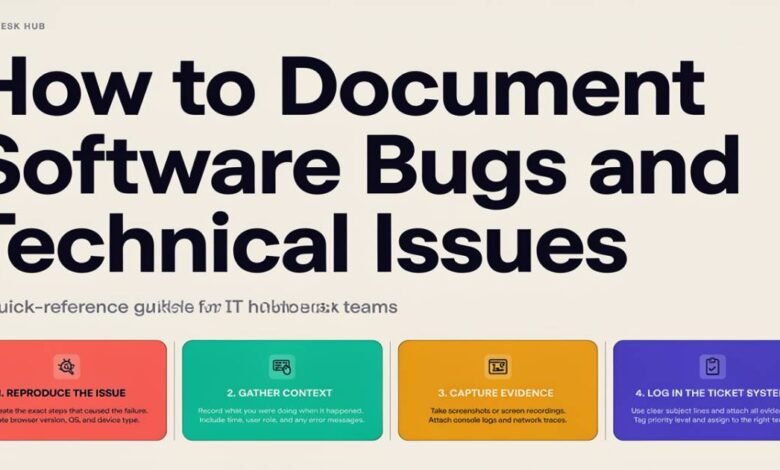
How to Document Software Bugs and Technical Issues Clearly for IT Helpdesk Teams

In any modern digital workspace, few things bring productivity to a grinding halt faster than an unexpected technical issue or software bug. Whether it is an unexpected error code on a corporate server, a unresponsive SaaS dashboard, or a broken checkout system on a custom portal, software glitches are an inevitable reality of working with complex technology systems.
However, when a technical issue arises, the speed at which it gets resolved rarely depends on the skill of the IT support technician alone. It depends heavily on the quality of the bug report submitted by the user.
To an IT helpdesk specialist or systems administrator, vague messages like “The site is down” or “It’s not letting me log in” provide almost no actionable data. These generic support tickets result in endless back-and-forth clarification emails, delayed resolution times, and mounting frustration for both parties.
Learning how to document software bugs clearly and systematically is an essential skill for remote workers, business operations managers, and independent creators alike. By providing helpdesk teams with structured, visual evidence, you can turn hour-long troubleshooting sessions into rapid, surgical fixes.
1. The Anatomy of an Actionable Helpdesk Ticket
To understand what makes a bug report effective, we must view the problem through the eyes of an IT technician. Support engineers operate like detectives: they need specific clues, timeline evidence, and environmental conditions to reconstruct the scene of the crime and isolate the root cause.
A high-quality bug report eliminates guesswork by delivering a standardized set of details right from the first interaction.
+———————————————————————–+
| ANATOMY OF A HIGH-IMPACT TICKET |
+———————————————————————–+
| 1. CLEAR SUMMARY –> Concise summary of the error |
| 2. SYSTEM ENVIRONMENT –> OS, Browser, App Version, Device Type |
| 3. REPLICATION STEPS –> Numbered, step-by-step sequence |
| 4. EXPECTED VS. ACTUAL –> What should happen vs. what occurred |
| 5. VISUAL PROOF –> High-res screenshot or screen recording|
+———————————————————————–+
Core Elements of a Great Issue Report
- Descriptive Issue Title: Avoid generic headlines. Instead of “Email Broken,” write “Outlook Web App returns 500 Internal Error when sending attachments over 5MB.”
- System and Environment Details: Always include your operating system (e.g., Windows 11 Build 22H2), browser version (e.g., Chrome v122), and specific software build numbers. A bug that manifests on macOS might be completely absent on Windows.
- Numbered Steps to Reproduce: List every mouse click, keystroke, and navigation step leading up to the error. If the IT team cannot reproduce the bug in their testing environment, they cannot fix it.
- Expected vs. Actual Behavior: State clearly what you were trying to achieve and what the system actually produced (e.g., “Expected: Redirect to payment confirmation screen. Actual: Blank white page with spinning loading wheel.”).
- Business Impact & Urgency Level: Indicate whether the issue affects only your local machine or disrupts revenue-generating operations across an entire department.
2. Visual Evidence: Why Words Are Not Enough
When describing user interface glitches, broken layouts, or cryptic system error dialogues, written text often fails to convey the full context. An error popup might disappear in two seconds, or a complex formatting bug might involve subtle alignment issues across multiple screen regions.
This is where visual documentation becomes invaluable. Providing a clear graphic snapshot allows helpdesk technicians to instantly see error codes, URL structures, browser extension conflicts, and active OS window states.
[ User Encounters Glitch ]
|
v
[ Captures Visual Evidence ] –> [ Eliminates Vague Email Back-and-Forth ]
|
v
[ Fast IT Root-Cause Fix ]
When documenting system issues on a PC, taking a quick, precise high-resolution screenshot is the most effective way to communicate visual data. Utilizing a simple workflow to perform a clean screen capture on Windows allows users to instantly record full-screen errors, isolated active dialog windows, or cropped regions containing specific error strings.
Attaching these clean visual assets directly to your helpdesk ticket ensures that support engineers do not have to ask you to read back long, complex error strings manually over the phone.
What to Include in Your Visual Captures
- The Full Browser or Window Frame: Do not crop out the address bar or taskbar unless necessary. URL query parameters, HTTP security protocols (HTTPS vs. HTTP), and browser tab titles provide valuable diagnostic context.
- Console Logs for Web Applications: If a web portal or CMS is freezing, right-click the page, select Inspect, navigate to the Console tab, and capture a screenshot of the red JavaScript error messages.
- System Clock and Timestamp: Including the system time on your screen helps IT engineers correlate your crash with server-side event logs.
3. Protecting Revenue in Sovereign and Subscription Ecosystems
The importance of rapid, accurate technical troubleshooting has magnified as the broader digital economy undergoes a major operational shift.
For years, digital creators, consultants, educators, and independent businesses relied primarily on third-party algorithmic social networks (like YouTube, X, and Instagram) to reach their audiences. However, unpredictable algorithm updates, sudden reach suppression, and opaque monetization policies have exposed creators to severe financial risk.
To take back control over their businesses, a growing wave of creators and digital entrepreneurs are migrating away from public social feeds into self-hosted, private, token-gated, or subscription-based spaces—such as Substack, Patreon, private Discord hubs, and custom-built web portals.
PUBLIC ALGORITHMIC FEEDS PRIVATE SUBSCRIPTION SPACES
+——————————–+ +——————————–+
| * Rented audience access | | * Direct client subscription |
| * Platform-managed tech stack | =====> | * Self-managed infrastructure |
| * High distribution volatility | | * Direct revenue ownership |
| * Outsourced bug support | | * Direct helpdesk liability |
+——————————–+ +——————————–+
When creators run independent platforms to protect their business revenue, they essentially become the IT directors of their own digital enterprises. On a public social platform, if a feature breaks, the user simply waits for a central tech team to fix it behind the scenes. But when a creator operates a private membership site or custom subscriber vault:
- Technical Downtime Equals Revenue Loss: A broken authentication workflow or failed payment gateway on a private membership portal directly impacts paid subscriber retention.
- Dependence on Specialized Helpdesks: Creators frequently work with boutique web hosts, freelance developers, and specialized IT support desks to maintain their infrastructure.
- Communication Speed Matters: When a paid subscriber cannot access exclusive video courses or token-gated downloads, the creator must submit precise, high-clarity bug reports to their IT support team to restore functionality immediately before churn occurs.
In this sovereign business model, clear technical communication is not just a polite workplace habit—it is a critical operational workflow that directly safeguards business revenue.
4. The Isolation Strategy: Troubleshooting Before You Submit
Before submitting a ticket to your IT helpdesk or web developer, performing a quick three-step “isolation check” can often help you identify the culprit immediately—or even solve the issue yourself.
+———————————————————————–+
| THE 3-STEP ISOLATION CHECK |
+———————————————————————–+
| STEP 1: CLEAR CACHE & COOKIES –> Eliminates stale local script errors|
| STEP 2: TEST INCOGNITO MODE –> Disables third-party extensions |
| STEP 3: TEST CROSS-DEVICE –> Determines local vs. server issue |
+———————————————————————–+
1. Clear Browser Cache and Cookies
Web browsers store static assets locally to speed up page load times. However, when server-side updates occur, your browser may attempt to load outdated JavaScript files, resulting in broken interface elements. Clearing your cache ensures you are testing fresh code.
2. Test in an Incognito / Private Window
Browser extensions—especially ad blockers, privacy scripts, and password managers—are infamous for interfering with web application scripts. Testing the bug in an Incognito window disables most extensions, isolating whether the problem stems from the platform itself or a local plugin.
3. Test Across Alternative Networks or Devices
If a custom dashboard fails to load on your desktop computer connected to office Wi-Fi, try accessing it on your mobile phone over cellular data. If it works on mobile, the issue lies within your local network firewall or desktop configuration, giving your IT team a massive head start on the solution.
Conclusion: Bridging the Gap Between Users and Support
At its core, technical troubleshooting is a collaborative effort between human beings. While software systems are built on precise logic and binary code, human communication is often messy, ambiguous, and subjective.
By mastering the art of bug documentation—combining structured step-by-step context, environmental details, and clean visual captures—you bridge the communication gap between end-users and technical support teams.
Whether you are an employee working within a corporate enterprise or an independent creator maintaining a private subscription platform, submitting clear, actionable support tickets saves valuable engineering hours, reduces business downtime, and ensures that your digital workspace remains fast, functional, and resilient.