Improve PC Performance with an Automatic Driver Updater, FPS Calculator, and Stress Test PC Tools

A computer’s performance depends on more than its processor speed or graphics card. Software compatibility, hardware condition, cooling efficiency, and system configuration all influence how smoothly a PC operates. Whether someone uses a computer for gaming, professional work, video editing, or everyday activities, understanding its performance can help prevent unnecessary problems.
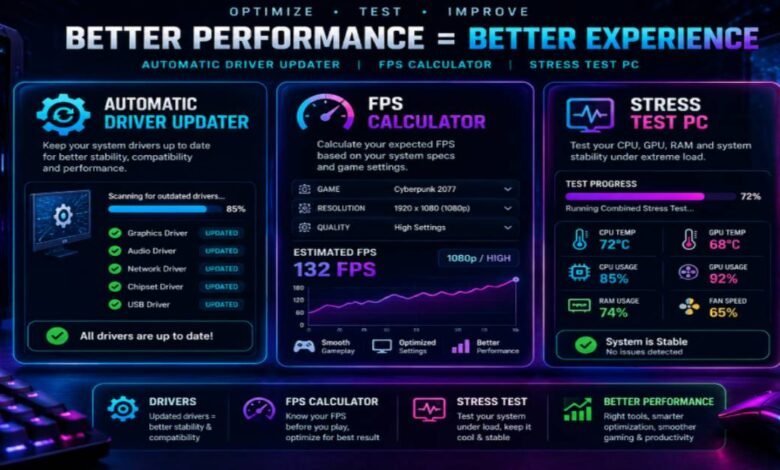
Modern PC tools make system maintenance and performance evaluation easier. An automatic driver updater can help users manage hardware drivers, an FPS calculator can estimate gaming performance, and a stress test PC tool can reveal how a computer behaves under heavy workloads. These solutions serve different purposes, but together they provide useful information for maintaining a reliable computer.
Why an Automatic Driver Updater Is Useful
Drivers allow Windows and other operating systems to communicate with installed hardware. Graphics cards, audio devices, network adapters, printers, and other components depend on appropriate drivers to function correctly.
Managing these drivers manually can sometimes be confusing, particularly for users who do not know their hardware models or manufacturer websites. An automatic driver updater simplifies this process by scanning the computer, identifying installed devices, and checking whether compatible driver updates are available.
Depending on the software, users may receive notifications about outdated drivers, compatibility improvements, and available updates. Some applications also provide backup and restoration options, making it easier to recover if an update causes unexpected problems.
There are several advantages to using this type of utility:
- Simplified maintenance: Users can identify available updates without searching for every driver individually.
- Improved compatibility: Appropriate updates may resolve conflicts between hardware and software.
- Convenient scanning: Automated detection can save time when checking multiple devices.
- Better troubleshooting: Missing or outdated drivers can sometimes explain audio, display, or connectivity problems.
However, users should choose their software carefully. Not every driver update is necessary, and an incorrect driver can create additional problems. Download updates from trusted sources, verify hardware compatibility, and create a restore point before making significant changes. Windows Update and official manufacturer websites remain reliable options.
Understanding an FPS Calculator
Frames per second, commonly called FPS, describes how many individual frames a computer displays each second. In gaming, FPS is an important performance measurement because it influences how smooth movement and animations appear.
An FPS calculator helps users estimate the frame rate their computer might achieve in a particular game or application. Depending on the calculator, users may enter their processor, graphics card, memory, screen resolution, and game selection to receive an estimated performance range.
For example, a computer with a powerful graphics card but an older processor may not achieve the same performance as a balanced system. Similarly, increasing resolution from 1080p to 1440p or 4K can increase the workload on the graphics card.
An FPS calculator can help gamers understand these relationships before purchasing hardware or changing graphics settings.
Factors That Influence FPS
Several components and settings determine gaming performance.
Graphics Processing Unit: The GPU handles rendering, textures, lighting, and visual effects. Its capabilities have a major influence on frame rates, particularly at higher resolutions.
Central Processing Unit: The CPU manages game logic, background calculations, and other processing tasks. Some games depend heavily on CPU performance.
RAM: Insufficient memory can cause stuttering, slowdowns, and inconsistent gameplay. Memory capacity and configuration can both matter.
Resolution: Higher resolutions require the computer to render more pixels, increasing graphics processing demands.
Graphics Settings: Features such as shadows, reflections, anti-aliasing, and ray tracing can significantly affect performance.
It is important to understand that FPS calculator results are estimates rather than guaranteed measurements. Actual results depend on game updates, drivers, temperatures, background applications, and system configuration.
Why You Should Stress Test PC Hardware
A computer may perform normally during everyday activities but struggle when running demanding applications. A stress test PC utility helps evaluate how hardware responds to sustained workloads.
During a stress test, selected components are placed under heavier-than-normal workloads. Monitoring tools can then display temperatures, clock speeds, utilization, and other performance information.
This process is particularly useful for people who have upgraded their hardware, assembled a new computer, or experienced unexpected shutdowns and performance instability.
Different Types of PC Stress Tests
CPU Stress Testing: A processor test places sustained computational demands on the CPU. It can help identify overheating, instability, or cooling problems.
GPU Stress Testing: Graphics testing places a heavy rendering workload on the graphics card. It helps evaluate thermal behavior and stability during demanding visual tasks.
RAM Testing: Memory testing checks for errors that could contribute to crashes, application failures, or unexpected system behavior.
Storage Testing: Storage diagnostics can identify performance problems and potential drive health concerns. Users should avoid unnecessary intensive write tests on drives containing important information.
Combined System Testing: Some utilities test multiple components together to observe how the computer behaves under demanding conditions.
Before running intensive tests, ensure that the computer has adequate ventilation and that important files are backed up. Monitor temperatures carefully and stop the test if the system shows unusual overheating, instability, or warning signs.
How These Three Tools Work Together
An automatic driver updater, FPS calculator, and stress test PC utility can form a useful PC maintenance routine.
Imagine someone preparing a computer for a newly released game. First, they review the system specifications and use an FPS calculator to estimate expected performance. This helps them understand whether their hardware is suitable for the selected resolution and graphics settings.
Next, they check whether compatible graphics and chipset drivers are available. Updating relevant drivers may improve compatibility or resolve existing issues.
Finally, they can use appropriate monitoring and stress-testing software to evaluate hardware stability. By observing temperatures and performance under controlled workloads, they can identify potential cooling or stability problems.
This process provides a clearer picture of the computer’s condition without immediately spending money on new components.
Common Mistakes to Avoid
Although these tools are helpful, using them incorrectly can create unnecessary problems.
One common mistake is installing every driver update without checking its source or compatibility. Another is treating FPS estimates as exact predictions. Different games use hardware differently, so two applications may produce very different results on the same computer.
Users should also avoid running stress tests continuously without monitoring temperatures. Heavy workloads generate heat, and inadequate cooling can affect hardware reliability.
Finally, changing several settings simultaneously makes troubleshooting difficult. Make one adjustment at a time and compare the results under similar conditions.
Conclusion
Maintaining a reliable computer requires attention to both software and hardware. An automatic driver updater can simplify driver management, an FPS calculator can help estimate gaming performance, and a stress test PC utility can reveal how components behave under demanding workloads.
These tools provide different types of information, but their combined use can support smarter maintenance and upgrade decisions. By checking compatibility, monitoring temperatures, and understanding performance limitations, users can build a more balanced PC setup and enjoy a smoother computing experience.
Read more articles from IPHLPSVC