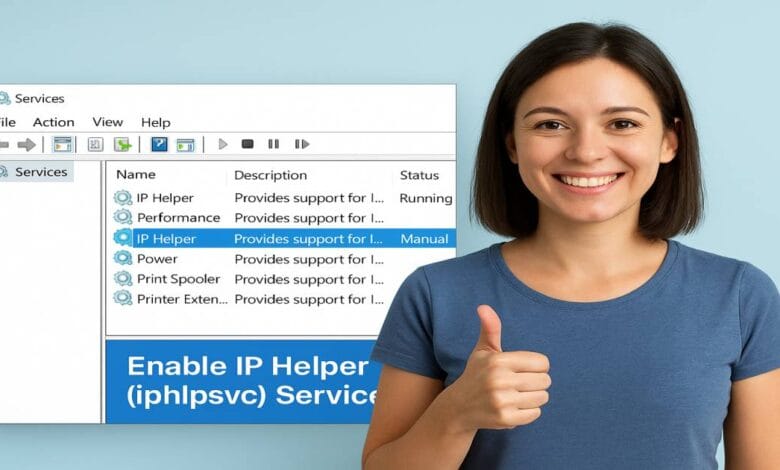
The iphlpsvc service in Windows, also known as IP Helper, supports IPv6 transitions, port proxying, and other network functions.
When it’s disabled, some tools or features may stop working — for example, netsh interface portproxy or IPv6 tunneling. If your Windows system is having trouble with IPv6 connections or port proxying, the problem might be that the iphlpsvc (IP Helper Service) is disabled.
This guide explains how to enable iphlpsvc safely, using simple language and practical steps.
Quick Fix: Enable iphlpsvc Fast in Windows
If you just want to turn iphlpsvc back on fast:
- Press Win + R, type services.msc, and press Enter.
- Find IP Helper in the list.
- Right-click → Properties.
- Set Startup type to Automatic (or Manual).

- Click Start, then OK.
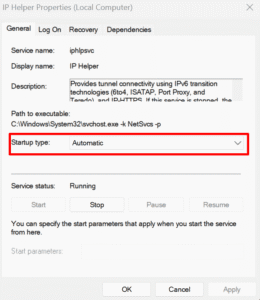
💡 Done. The service is active again.
For PowerShell (Admin):
Set-Service -Name iphlpsvc -StartupType Automatic
Start-Service -Name iphlpsvc
Or Command Prompt (Admin):
sc.exe config iphlpsvc start= auto
sc.exe start iphlpsvc
What is iphlpsvc (IP Helper Service)?
The IP Helper (iphlpsvc) is a background Windows service that allows applications to:
- Use IPv6 transition technologies like 6to4, Teredo, and IP-HTTPS
- Support port proxying and network diagnostics
- Help network-dependent software connect properly
When stopped, some network tools or VPNs may fail to run.
When You Need It
You should enable iphlpsvc if:
- You use IPv6 tunneling or remote access features
- You set up port forwarding via netsh interface portproxy
- A program requires IP Helper to connect or sync data
If you only use basic browsing and no advanced networking, you may not notice any issue.
But for system admins or developers, keeping iphlpsvc running ensures stable network operations.
Before You Enable It (Safety First)
Do these checks before making changes:
- Run as Administrator — you need admin rights.
- Create a Restore Point — always a safe habit.
- Scan for Malware — if the service was disabled by something else, rule out infection.
- Backup Registry — if you’ll edit it manually later.
Method A: Enable iphlpsvc Using Services (GUI)
- Press Win + R, type services.msc, press Enter.
- Locate IP Helper.
- Right-click → Properties.
- Set Startup type:
- Automatic – starts with Windows.
- Manual – starts only when needed.
- Automatic – starts with Windows.
- Click Start → Apply → OK.
If “Start” is greyed out or fails, skip to the troubleshooting section below.
Method B: Enable iphlpsvc with PowerShell (Recommended)
This is the cleanest and most reliable method for admins.
Run PowerShell as Administrator, then type:
Set-Service -Name iphlpsvc -StartupType Automatic
Start-Service -Name iphlpsvc
Get-Service -Name iphlpsvc
✅ If the status shows Running, it’s active.
Optional — for delayed start:
sc.exe config iphlpsvc start= delayed-auto
Method C: Enable iphlpsvc Using Command Prompt (sc.exe / net start)
For older systems or scripting:
sc.exe config iphlpsvc start= auto
sc.exe start iphlpsvc
or
net start iphlpsvc
Note: The space after start= is required.
sc.exe directly communicates with the Windows Service Controller.
Method D: Fix via Registry (Advanced)
Only do this if the service fails to start or is missing.
Caution: Backup before editing.
- Open Registry Editor (regedit).
- Navigate to:
HKEY_LOCAL_MACHINE\SYSTEM\CurrentControlSet\Services\iphlpsvc
3. Check:
- Check the following values:
- Start → should be 2 (Automatic)
- DependOnService → ensure dependencies are valid
If something looks wrong, fix the value and restart your PC.
Troubleshooting Common Problems
Issue: Service fails to start or times out
- Check Event Viewer → System Logs → ID 7000/7011.
- Try increasing the service timeout in the registry (ServicesPipeTimeout).
Issue: Start button is greyed out
- Try a Clean Boot to find conflicting software.
- Some programs disable IP Helper automatically.
Issue: Port proxy not working
- Run netsh interface portproxy show all → If empty, start iphlpsvc first.
Issue: Dependency error
- Recheck DependOnService in the registry or reinstall missing network drivers.
Issue: High CPU usage
- Run sfc /scannow and DISM /Online /Cleanup-Image /RestoreHealth.
- Scan for malware if CPU usage stays high.
For more detailed technical steps and troubleshooting guidance, visit the official Microsoft Support page for IP Helper Service.
How to Disable or Revert
If you want to disable it later:
Services (GUI)
- Services → IP Helper → Properties → Stop → Startup type = Disabled
Command Line
sc.exe stop iphlpsvc
sc.exe config iphlpsvc start= disabled
Registry
Set Start = 4 at:
HKEY_LOCAL_MACHINE\SYSTEM\CurrentControlSet\Services\iphlpsvc
You can re-enable it later by setting it back to 2 (Automatic).
Security, Safety, and Stability Notes for iphlpsvc
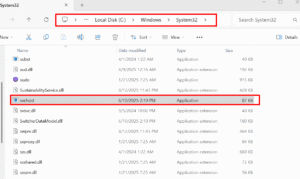
- iphlpsvc is a legit Windows service, not malware.
(Its location: C:\Windows\System32\svchost.exe -k NetSvcs).

- Some VPNs, IPv6 tunneling, and DirectAccess features require it.
- If you find it constantly disabled, check for misconfigured optimization tools or registry “tweakers.”
Final Commands Recap
| Purpose | Command(s) |
|---|---|
| Enable & Start | sc.exe config iphlpsvc start= autosc.exe start iphlpsvc |
| Enable (PowerShell) | Set-Service -Name iphlpsvc -StartupType AutomaticStart-Service -Name iphlpsvc |
| Check Status | Get-Service -Name iphlpsvc |
| Disable | sc.exe config iphlpsvc start= disabledsc.exe stop iphlpsvc |
✅ Final Thoughts
Enabling iphlpsvc is usually safe and quick.
Most users can use the Services app to turn it back on.
If it fails, PowerShell or registry repair usually solves it.
Keep your restore point ready, use admin rights, and always double-check system logs if something doesn’t work.
Once iphlpsvc is running, your IPv6 and port proxy features will start working again — simple as that.
Quick Summary
That’s it! You’ve successfully learned how to enable iphlpsvc in Windows using multiple safe methods. Keeping this service running ensures smooth IPv6, VPN, and port proxy operations.
For more Windows troubleshooting tips, check out our Smart OS Hacks or visit the iphlpsvc homepage for related guides.
FAQs About iphlpsvc (IP Helper Service)
Q1. Is it safe to enable iphlpsvc?
Ans: Yes. iphlpsvc is a core Windows service responsible for IPv6, port proxy, and other network features. It’s safe unless malware has altered it.
Q2. Can I disable iphlpsvc permanently?
Ans: Yes, but some VPNs, remote access tools, and IPv6 services may stop working.
Q3. What happens if iphlpsvc is missing?
Ans: You can restore it by running sfc /scannow or repairing Windows network components.