When working with Windows, you may often come across background services that seem confusing. One such service is iphlpsvc, also known as the IP Helper Service. At first glance, the name might sound complicated, and many users wonder if it is really necessary, whether it slows down the system, or if it could even be a security risk.
The truth is, iphlpsvc plays an important role in modern networking inside Windows. It helps your computer support advanced technologies like IPv6, network diagnostics, and tunneling. However, like many background processes, users often face questions such as:
- Is iphlpsvc safe or harmful?
- Can it be disabled without issues?
- What problems happen if iphlpsvc malfunctions?
- How do you fix errors related to it?
In this guide, we will cover everything you need to know about iphlpsvc (IP Helper Service) — its functions, benefits, possible issues, risks of disabling, and the safe methods to manage it. By the end, you’ll have a clear understanding of whether you should keep this service running or make changes to improve your PC’s performance.
Functions and Role of iphlpsvc (IP Helper Service)
The iphlpsvc service (IP Helper Service) is built into Windows to make networking smoother and more advanced. While most people never directly interact with it, it silently works in the background to keep internet connections stable and compatible with modern technologies.
Here are the main roles of iphlpsvc:
- Support for IPv6
- Many websites and apps are now moving from IPv4 to IPv6.
- iphlpsvc makes sure your computer can connect smoothly with both IPv4 and IPv6 networks.
- Network Diagnostics
- When you troubleshoot network problems in Windows (using “Network Troubleshooter”), iphlpsvc helps run tests and apply fixes.
- Tunneling Support
- It enables tunneling technologies like 6to4, ISATAP, Teredo, and IP-HTTPS.
- These allow IPv6 traffic to pass through IPv4 networks, which is useful if your ISP or router doesn’t fully support IPv6 yet.
- Improves App Compatibility
- Some modern apps and games rely on IPv6. iphlpsvc ensures they work properly, especially for online features.
- Helps with Remote Connections
- Certain VPNs and remote-access tools require tunneling support. iphlpsvc keeps those connections stable.
Is iphlpsvc (IP Helper Service) Safe or a Virus?
Many Windows users see iphlpsvc.exe running in Task Manager and start worrying — “Is this a virus or malware?” The good news is: No, iphlpsvc (IP Helper Service) is not a virus. It is a legitimate Windows system service developed by Microsoft.
How to Confirm if iphlpsvc is Safe?
You can double-check to make sure the running service is the genuine one:
1. Check File Location
- Open Task Manager → Right-click iphlpsvc.exe → Choose Open File Location.
The original file should be located in:
C:\Windows\System32\
- If it’s found elsewhere, it might be suspicious.
2. Verify Digital Signature
- Right-click the file → Properties → Digital Signatures.
- It should show Microsoft Windows as the signer.
3. Run a Security Scan
- Use Windows Security or a trusted antivirus to make sure no malware is disguised as iphlpsvc.
⚠️ Note:
Some viruses may pretend to be iphlpsvc and run under a similar name. That’s why verifying file location and signature is important.
✅ If the file is in System32 and signed by Microsoft → it is 100% safe.
Benefits of Keeping iphlpsvc Enabled
While many users think about disabling iphlpsvc (IP Helper Service) to “save resources,” in reality, keeping this service enabled has several benefits, especially if you use modern networking features in Windows.
1. Smooth IPv6 Connectivity
- iphlpsvc helps your PC communicate using IPv6, the latest internet protocol.
- Many apps and websites already support IPv6, so without this service, you may face browsing or connection issues.
2. Proper Function of Network Tools
- Features like Port Proxy, Network Diagnostics, Teredo, and ISATAP need iphlpsvc to run smoothly.
- Without it, troubleshooting network problems can become harder.
3. Compatibility with Modern Apps & Games
- Some multiplayer games, VPNs, and streaming services rely on IPv6 tunneling.
- Disabling iphlpsvc may cause errors like “Unable to connect to server” or lagging issues.
4. Better Security & Connectivity
- iphlpsvc supports technologies like IPsec, which improves secure communication.
- By keeping it active, you reduce the risk of failed VPN or firewall operations.
5. Future-Proof Networking
- Internet providers worldwide are slowly moving from IPv4 to IPv6.
- iphlpsvc ensures your system stays compatible with the latest networking standards.
👉 In short: Disabling iphlpsvc might not show problems immediately, but in the long run, it can create issues with apps, VPNs, or online gaming.
Can You Change the iphlpsvc Port? (Risks & Limitations)
Some advanced users wonder if they can change the iphlpsvc (IP Helper Service) port to fix conflicts or improve performance. The truth is a bit tricky:
Can You Really Change the Port?
- iphlpsvc doesn’t work like a normal application, where you can freely set a custom port.
- Its functions (like Teredo tunneling, ISATAP, 6to4) are built into Windows networking stack.
- Microsoft doesn’t provide any official option in Settings to directly change its port.
Advanced Tweaks (Not Recommended)
- Some registry hacks and command-line tools may allow altering tunneling behavior (e.g., netsh interface teredo set state).
- But modifying these settings can:
- Break IPv6 connectivity
- Cause errors with VPNs or apps
- Create instability in the system
Risks of Changing iphlpsvc Port
- 🔴 Network Instability – Websites and services may stop loading.
- 🔴 Security Issues – Misconfigurations may expose your system to attacks.
- 🔴 Hard to Troubleshoot – If something breaks, restoring defaults can be complex.
Recommended Approach
Instead of forcing a port change:
- Keep iphlpsvc on default settings.
- If you face port conflicts, check other applications first (firewalls, VPNs, or third-party software).
- Only network admins with deep Windows knowledge should attempt tweaks.
👉 Final Word: Technically possible through complex tweaks, but not safe or recommended for regular users.
Common Issues Related to iphlpsvc (IP Helper Service)
Although iphlpsvc is a helpful Windows service, sometimes it can cause confusion or minor problems. Below are the most common issues users report:
1. High CPU or Memory Usage
- Sometimes, iphlpsvc may consume too many system resources.
- This usually happens if a background process (like a VPN or tunneling service) keeps calling it repeatedly.
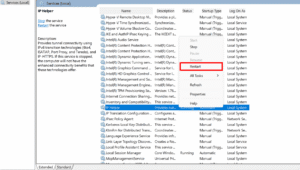
Fix: Restart the service or run:
services.msc → Locate “IP Helper” → Right-click → Restart
2. “iphlpsvc.dll Missing” Error
- Rarely, system updates or corrupted files may cause missing DLL errors.
- Windows may show popups like “iphlpsvc.dll not found.”
Fix: Run System File Checker (SFC) command:
sfc /scannow
3. Network Connectivity Problems
- If iphlpsvc fails, IPv6 tunneling may not work.
- Symptoms: certain apps, online games, or VPNs cannot connect.
Fix: Re-enable the service → Restart your PC.
4. Service Not Starting Automatically
- Some users disable iphlpsvc to “optimize” Windows, then forget to enable it.
- This can lead to compatibility problems.
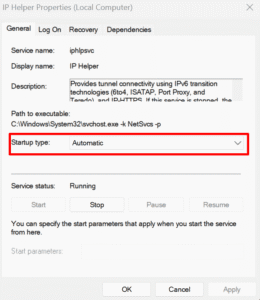
Fix:
- Open services.msc
- Find IP Helper
- Set Startup type → Automatic
5. Conflicts with VPN or Firewalls
- Certain VPNs and security apps may conflict with iphlpsvc.
- This can cause crashes or slowdowns.
Fix: Update VPN/firewall apps and keep iphlpsvc enabled.
👉 In most cases, iphlpsvc is not the real cause of errors — it’s either misconfigured apps or disabled services.
Should You Disable or Enable iphlpsvc?
This is the most common question about iphlpsvc: “Do I really need it, or should I disable it to improve performance?”
Reasons to Keep iphlpsvc Enabled
- Supports IPv6 connectivity (future internet standard).
- Needed for VPNs, online games, and certain apps.
- Provides better security with IPsec and tunneling support.
- Disabling it may not save much CPU/RAM, but can create major network issues.
Reasons Some Users Disable It
- Troubleshooting high CPU or RAM usage.
- Minimalist users who don’t need IPv6 or advanced networking features.
- PCs that are offline-only or used for very basic tasks.
Microsoft’s Recommendation
- Microsoft does not recommend disabling iphlpsvc unless you have a specific reason.
- For most users, leaving it enabled is the safest option.
👉 Final Answer:
- Home & Office Users: Keep iphlpsvc enabled.
- Advanced Users (with full IPv4-only networks): Can disable it, but at their own risk.
How to Disable or Enable IPhlpsvc (Step-by-Step)
If you decide to manage iphlpsvc (IP Helper Service), it’s important to do it safely. Below are multiple ways to enable or disable IP Helper in Windows.
1. Using Services (services.msc)
- Press Win + R, then type services.msc, and hit/press Enter.
- Scroll down and find IP Helper.
- Right-click → Properties.
- Change Startup type to:
- Automatic (default)
- Manual
- Disabled
- Click Start or Stop as needed.
- Click OK to save changes.
2. Using Command Prompt (Admin)
- Open Command Prompt as Administrator.
- To disable iphlpsvc:
sc config iphlpsvc start= disabled
sc stop iphlpsvc
3. To enable iphlpsvc:
sc config iphlpsvc start= auto
sc start iphlpsvc
3. Using Registry Editor (Advanced)
⚠️ Only for experienced users. Incorrect changes can harm Windows.
- Press Win + R, type regedit, and press Enter.
- Navigate:
HKEY_LOCAL_MACHINE\SYSTEM\CurrentControlSet\Services\iphlpsvc
3. Modify Start DWORD:
- 2 = Automatic
- 3 = Manual
- 4 = Disabled
4. Reboot the PC to apply changes.
4. Using MSConfig
- Press Win + R, type msconfig, and press Enter.
- Go to Services tab → locate IP Helper → check/uncheck → Apply → OK.
- Restart your PC.
5. Using Group Policy (For Windows Pro/Enterprise)
- Press Win + R, type gpedit.msc, press Enter.
- Navigate:
Computer Configuration → Windows Settings → Security Settings → System Services → IP Helper
3. Configure Startup type as required.
Fixing iphlpsvc Errors and Performance Issues
Even though iphlpsvc (IP Helper Service) is usually stable, sometimes errors or performance problems can occur. Here’s how to fix them safely:
1. Restart the Service
- Press Win + R → services.msc → IP Helper → Right-click → Restart
- Often resolves temporary glitches or high CPU usage.
2. Reset TCP/IP Stack and Winsock
- Open Command Prompt (Admin) and run:
netsh int ip reset
netsh winsock reset
- Restart your PC after running these commands.
3. Enable IPv6 in Network Adapter
- Open Control Panel → Network and Sharing Center → Change adapter settings
- Right-click your active network → Properties
- Make sure Internet Protocol Version 6 (TCP/IPv6) is checked
4. Check PortProxy Rules
- Run in Command Prompt:
netsh interface portproxy show all
- Remove unnecessary rules using:
netsh interface portproxy delete v4tov6 [port details]
5. Run System File Checker
- Open Command Prompt (Admin) and run:
sfc /scannow
- Fixes corrupted system files, including iphlpsvc.dll.
6. Update Windows
- Go to Settings → Update & Security → Windows Update
- Install pending updates, as some fixes for iphlpsvc come via system updates.
7. Check for Malware
- Although iphlpsvc is safe, malware may impersonate it.
- Run a full system scan using Windows Security or trusted antivirus software.
Expert Advice and Best Practices
To keep your system running smoothly while using iphlpsvc, here are some expert recommendations:
1. Leave iphlpsvc Enabled
- For most users, it’s best to keep the service running automatically.
- Disabling it can break network features, VPNs, or online applications.
2. Monitor Resource Usage
- Occasionally, check Task Manager → Services tab for CPU/memory usage.
- High usage is usually temporary and resolves after a restart.
3. Use Command-Line Tools for Advanced Troubleshooting
- Commands like netsh interface teredo show state and netsh interface portproxy show all help diagnose tunnel and port issues.
4. Keep Windows Updated
- Updates may include IPv6, security, and iphlpsvc-related fixes.
- Always install recommended updates for stable networking.
5. Backup Before Tweaks
- If you plan to disable iphlpsvc or modify ports, create a restore point first.
- This ensures you can revert changes if something goes wrong.
6. Avoid Unverified Tweaks
- Do not edit registry keys or disable services without full knowledge.
- Unofficial guides may cause network failures or instability.
Conclusion: Managing iphlpsvc (IP Helper Service) Safely
The IP Helper (iphlpsvc) is an important Windows service that ensures modern networking features work correctly.
Key Takeaways:
- iphlpsvc (IP Helper Service) is safe and not a virus. Always verify its location in C:\Windows\System32\ if unsure.
- It provides IPv6 connectivity, tunneling, portproxy support, and better app compatibility.
- Disabling iphlpsvc is generally not recommended, except for advanced users with specific requirements.
- Keeping it enabled ensures your system works seamlessly with VPNs, games, and online applications.
- For troubleshooting, use safe methods like restarting the service, resetting TCP/IP, enabling IPv6, and keeping Windows updated.
By following best practices and using the service wisely, you can enjoy stable and future-ready networking on your Windows PC.
FAQs About IP Helper Service
Q1: Can I safely disable IP Helper Service?
A: Only if you don’t need IPv6 tunnels, VPNs, or certain network-dependent apps. For most users, keeping it enabled is safer.
Q2: Is IP Helper a virus?
A: No. It’s a legitimate Windows service. Only worry if it’s running from an unusual location or flagged by antivirus.
Q3: What happens if I disable IP Helper Service?
A: IPv6 tunneling stops, some apps may fail, network diagnostics may not work, and VPNs could face connectivity issues.
Q4: How do I check if IP Helper Service is running?
A: Open services.msc and locate IP Helper, or run in Command Prompt:
sc query iphlpsvc
Q5: Can I change IP Helper ports?
A: No direct port change is supported. Only portproxy rules via netsh can be modified.
Q6: Why is IP Helper using CPU?
A: Temporary high usage can occur during network queries, tunneling, or portproxy operations. Usually, a restart resolves it.
Q7: How do I enable or disable IP Helper?
A: Use Services (services.msc), Command Prompt, Registry Editor, MSConfig, or Group Policy. Always follow safe steps.






4 Comments