If you’ve ever opened Task Manager and noticed a process named iphlpsvc running in the background, you might have wondered what is the iphlpsvc and whether it’s safe to disable. In this comprehensive guide, we’ll delve into the details of the IP Helper service, its role in your Windows operating system, potential issues, and how to manage it effectively.
Quick Answer: What is the iphlpsvc?
The iphlpsvc, or IP Helper Service, is a Windows system service responsible for providing tunnel connectivity using IPv6 transition technologies such as ISATAP, 6to4, Teredo, Port Proxy, and IP-HTTPS. It facilitates the communication between IPv6 and IPv4 networks, ensuring seamless connectivity in environments that require both protocols.
For an official overview of the IP Helper service, you can refer to the IP Helper Service overview on Microsoft Docs
How IP Helper Works: Detailed Explanation
The IP Helper service operates by enabling various tunneling protocols that allow IPv6 packets to be transmitted over an IPv4 network. Here’s how some of these protocols function:
- ISATAP (Intra-Site Automatic Tunnel Addressing Protocol): Allows IPv6 packets to be sent over an IPv4 network within an intranet.
- 6to4: Enables IPv6 connectivity between nodes on the IPv6 internet and nodes on the IPv4 internet.
- Teredo: Provides IPv6 connectivity for hosts that are located behind NAT (Network Address Translation) devices.
- Port Proxy: Allows for the forwarding of network traffic from one port to another, facilitating communication between different network protocols.
- IP-HTTPS: A secure tunneling protocol that encapsulates IPv6 packets within HTTP packets, allowing IPv6 traffic to traverse NAT devices and firewalls.
These technologies are essential for environments transitioning from IPv4 to IPv6, ensuring compatibility and uninterrupted network communication.
IPv6 Transition Technologies in Depth
As the internet moves towards IPv6 due to the exhaustion of IPv4 addresses, transition technologies like ISATAP, 6to4, Teredo, and IP-HTTPS play a crucial role. They allow IPv6-enabled devices to communicate over an IPv4 infrastructure, facilitating a smoother transition. The IP Helper service manages these protocols, ensuring that devices can communicate effectively during the transition period.
Real-World Examples of iphlpsvc Usage
Consider the following scenarios where the IP Helper service is instrumental:
- Remote Access: When accessing a remote network that uses IPv6, the IP Helper service ensures that your device can communicate effectively, even if your local network is IPv4-based.
- Dual-Stack Networks: In networks that support both IPv4 and IPv6, the IP Helper service manages the communication between devices using different protocols.
- Enterprise Environments: Large organizations transitioning to IPv6 rely on the IP Helper service to maintain connectivity across their infrastructure.
In these cases, disabling the IP Helper service could lead to connectivity issues and hinder communication between devices using different IP protocols.
Common Problems and Symptoms
While the IP Helper service is generally beneficial, users may encounter certain issues:
- High Memory Usage: In some cases, the service may consume an excessive amount of system resources, leading to performance degradation.
- Connectivity Issues: Disabling the service can result in problems connecting to networks that rely on IPv6 or the tunneling protocols managed by the service.
- Service Failures: If the IP Helper service fails to start or stops unexpectedly, it can disrupt network communication, especially in dual-stack or IPv6-dependent environments.
Monitoring the service’s performance and addressing any issues promptly can help maintain optimal system functionality.
Basic Troubleshooting Steps
If you’re experiencing issues related to the IP Helper service, consider the following steps:
- Restart the Service: Open the Services application, locate the IP Helper service, and restart it to resolve temporary issues.

- Check Dependencies: Ensure that other services dependent on IP Helper are functioning correctly.
- Update Network Drivers: Outdated drivers can cause compatibility issues; ensure your network drivers are up to date.
- Run Network Troubleshooter: Use Windows’ built-in network troubleshooter to diagnose and fix common connectivity problems.
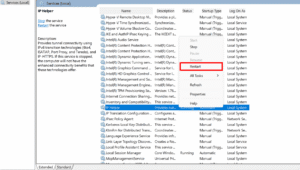
These steps can help resolve minor issues without the need for advanced interventions.
Advanced Troubleshooting Scenarios
For more persistent or complex issues:
- Check Event Logs: Review Windows Event Viewer for any error messages related to the IP Helper service.
- Reconfigure Tunneling Protocols: Misconfigurations in tunneling protocols can cause connectivity problems; ensure they are set up correctly.
- Perform System Restore: If recent changes have caused issues, performing a system restore can revert your system to a previous state.
- Reinstall Network Stack: In severe cases, reinstalling the network stack can resolve deep-rooted issues.
These advanced steps should be undertaken with caution and preferably by experienced users or IT professionals.
Enterprise & DirectAccess Dependencies
In enterprise environments, the IP Helper service is vital for technologies like DirectAccess, which provides seamless, always-on remote access to corporate networks. Disabling the service can disrupt these services, leading to connectivity issues for remote users. It’s essential to ensure that the IP Helper service is running to maintain the functionality of such enterprise-grade solutions.
Malware Impersonation Cases
While the IP Helper service itself is legitimate, malware can sometimes impersonate it to avoid detection. If you notice unusual behavior or high resource usage associated with the iphlpsvc process, it’s advisable to:
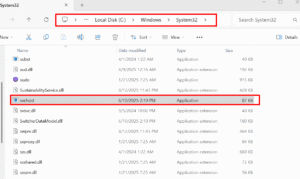
- Verify the File Location: Ensure the iphlpsvc.dll file is located in the C:\Windows\System32\ directory.
- Run Antivirus Scans: Use reputable antivirus software to scan for and remove any potential threats.
- Check Digital Signatures: Verify the digital signature of the iphlpsvc.dll file to ensure its authenticity.
Taking these precautions can help detect and mitigate potential security threats.
Disabling iphlpsvc Safely
If you determine that the IP Helper service is unnecessary for your system’s operation, you can disable it:
- Via Services:
- Press Win + R, type services.msc, and press Enter.
- Locate IP Helper, right-click, and select Properties.
- In the Startup type dropdown, select Disabled.
- Click Stop to halt the service immediately.
- Via Registry Editor:
- Press Win + R, type regedit, and press Enter.
- Navigate to HKEY_LOCAL_MACHINE\SYSTEM\CurrentControlSet\Services\iphlpsvc.
- Double-click the Start value and change its data to 4 (Disabled).
- Click OK and restart your computer.
- Via Command Prompt:
- Open Command Prompt as Administrator.
- Type sc config iphlpsvc start= disabled and press Enter.
- To stop the service immediately, type net stop iphlpsvc and press Enter.
Remember to restart your computer for the changes to take effect.
Re-enabling and Recovery
If you need to re-enable the IP Helper service:
- Via Services:
- Follow the steps above to open the IP Helper properties.
- Set the Startup type to Automatic.
-

- Click Start to initiate the service.
- Via Registry Editor:
- Navigate to the same registry path.
- Double-click the Start value and change its data to 2 (Automatic).
- Click OK and restart your computer.
- Via Command Prompt:
- Open Command Prompt as Administrator.
- Type sc config iphlpsvc start= demand and press Enter.
- To start the service immediately, type net start iphlpsvc and press Enter.
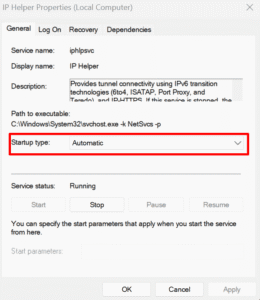
These steps will restore the IP Helper service to its default state.
Risks and Impact of Disabling iphlpsvc
Disabling the IP Helper service might seem like a way to improve performance or reduce memory usage, but it carries several potential risks:
- Loss of IPv6 Connectivity
- Services that rely on IPv6, including certain websites, remote access, or cloud services, may fail to connect.
- Breakage of Tunneling Protocols
- Technologies like Teredo, 6to4, and ISATAP will no longer function, which may disrupt VPNs, DirectAccess, or enterprise networking.
- Enterprise Network Issues
- Organizations using DirectAccess or other IPv6-dependent infrastructure may experience network failures, connection timeouts, or inability to authenticate remotely.
- Software Compatibility Problems
- Some modern apps and security tools expect IPv6 support. Disabling the service can cause errors or prevent them from running correctly.
- Malware Misinterpretation
- Disabling iphlpsvc without proper checks may mask or complicate malware detection if a malicious process is disguised as iphlpsvc.
Tip: Only disable IP Helper if you are confident your network environment doesn’t require IPv6 or tunneling protocols.
Best Practices for Home and Enterprise Users
Whether you are a casual user or managing a corporate network, following best practices ensures that the IP Helper service runs safely and efficiently:
Home Users
- Keep the Service Enabled: Even if you don’t actively use IPv6, some Windows features rely on iphlpsvc.
- Monitor Resource Usage: Check Task Manager for unusually high CPU or memory usage.
- Regular Updates: Ensure Windows updates and network drivers are current to avoid conflicts.
- Antivirus Checks: Periodically scan your system to make sure iphlpsvc hasn’t been tampered with.
Enterprise Users
- Maintain IPv6 Infrastructure: Many enterprise solutions depend on IPv6; do not disable iphlpsvc unless a network redesign is in place.
- Document Dependencies: Record which applications or services require IP Helper.
- Use Group Policies: Manage IP Helper settings centrally for consistent behavior across devices.
- Monitor Logs: Regularly review Event Viewer logs for iphlpsvc-related errors to catch issues early.
Pro Tip: For hybrid networks (IPv4 + IPv6), IP Helper ensures smooth communication and should rarely be disabled in production environments.
Final Thoughts
Understanding what is the iphlpsvc and how it works is essential for maintaining a stable and secure Windows environment. This system service plays a crucial role in managing IPv6 connectivity, tunneling protocols, and enterprise networking features like DirectAccess.
While disabling the service can sometimes be tempting to reduce memory usage or fix network issues, doing so can lead to unexpected problems, especially in complex network environments. The safest approach is to monitor the service, troubleshoot issues carefully, and only disable it when you fully understand the implications.
By following best practices and keeping your system updated, you can ensure that the IP Helper service works efficiently without compromising performance or security.
FAQs About What is the iPhlpsvc
- Is iphlpsvc safe?
Yes. IP Helper (iphlpsvc) is a legitimate Windows service and is essential for IPv6 connectivity and tunneling protocols. - Can I disable iphlpsvc?
You can, but it may cause network issues, especially with IPv6, VPNs, or enterprise features like DirectAccess. Only disable it if you are sure it is not needed. - Why is iphlpsvc using high CPU or memory?
High resource usage is rare but can occur due to misconfigurations, driver issues, or malware impersonation. Restarting the service, updating drivers, and scanning for malware usually resolves the problem. - How can I check if iphlpsvc is genuine?
The legitimate iphlpsvc file is located in C:\Windows\System32\. You can also verify its digital signature and scan it using antivirus software. - What happens if I re-enable iphlpsvc?
Re-enabling restores IPv6 connectivity and ensures that tunneling protocols and services like DirectAccess function properly.
6. Does iphlpsvc affect home users?
For most home users, it has minimal impact. However, it ensures compatibility with modern applications and websites that require IPv6.