Lost data from Android phone and now looking for recovery workarounds? Don’t worry, it is possible to restore your deleted data in most of the scenarios. If you are looking for methods to recover your data without backup, third-party software dedicated for Android data recovery can help you. Choosing the right recovery tool as per your need is also challenging, but we’re here to help you with that.
In this guide, we’ll explore the top 5 Android data recovery software tools you can trust. You just need to compare these tools and then select the one that best fits your needs.
Stop Using Your Android Phone First
Deleted files on Android don’t vanish right away. The system just marks that space as available, and the old data sits there until something new lands on top of it. A new photo can do it. So can an app update running quietly in the background.
The less you use the phone from here on, the better your odds. Switch off auto-updates if you can. And don’t install a recovery app on the phone itself, because the download alone takes up space. That’s the reason every tool on this list runs from a computer.
Look for Backup First to Restore Data
This step costs nothing, and it fixes the problem more often than you’d think.
Start with the Trash in Google Photos. Anything that was backed up stays there for 60 days after you delete it (30 days if it wasn’t). Then check whether your Google account was backing up the phone. If it was, your contacts, texts and call history can come back when you set the phone up again. Samsung, Xiaomi and a few other brands keep their own cloud backups too, separate from Google’s, so sign in there as well.
For WhatsApp, if Google Drive backup was on, reinstall the app and tap Restore when it asks.
No luck? Then it’s time to go for Android data recovery software.
5 Best Android Data Recovery Tools
1. Stellar Data Recovery for Android
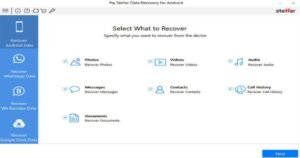
This is where we’d start, mostly because Stellar Data Recovery Software for Android takes away the things that usually stop people halfway through.
Stellar Data Recovery for Android is a Windows-based recovery tool for retrieving deleted photos, videos, messages, contacts, documents, and WhatsApp chats from Android devices. Its straightforward recovery process makes it an option for users who want to scan their device and preview recoverable files before saving them.
One advantage is its free version, which lets you recover up to 10 files, with each file up to 10 MB, so you can test the recovery process before purchasing the software. The tool can also extract WhatsApp data from Google Drive backups, which may help when recovering WhatsApp chats from a backup rather than directly from a phone.
Key features of Stellar Data Recovery for Android:
- Free recovery: Recover up to 10 files, with a maximum size of 10 MB per file.
- Multiple file types: Supports recovery of photos, videos, messages, contacts, documents, and WhatsApp chats.
- Three-step process: Select the recovery option, scan for lost data, and recover the files.
- File preview: Check recoverable files before saving them.
- Multiple data-loss scenarios: Helps recover data lost through accidental deletion, system crashes, or failed updates.
- Google Drive backup support: Extract WhatsApp data from a Google Drive backup.
Limitation: The software runs on Windows, so users looking for a macOS-based recovery application will need an alternative.
2. Tenorshare UltData for Android
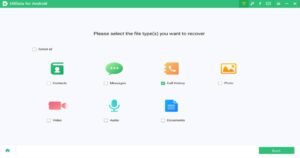
If Stellar is out because you use a Mac, UltData is the next best fit. It runs on both Windows and Mac, and like Stellar, it doesn’t need root.
You can pick individual files or whole categories instead of restoring everything the scan finds. That keeps things tidy when a scan turns up thousands of old thumbnails you don’t want. Photos, videos, documents and WhatsApp are all supported, though how well it works still depends on your Android version, the phone model and the state of the storage.
Where it falls behind Stellar is the free version. You can preview what it finds, but you’ll have to buy a license before saving anything.
Key features of Tenorshare UltData:
- Supports recovery of deleted data of various types such as photos, videos, documents, and other commonly lost Android data.
- Scans compatible Android devices to locate deleted, missing, or inaccessible files that may remain recoverable.
- Enables you to choose individual files or specific categories rather than recovering every detected item.
3. Wondershare Dr.Fone
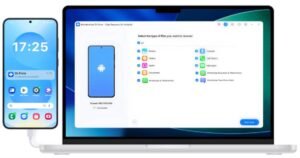
Dr.Fone isn’t really a recovery tool. It’s a phone toolkit that happens to include recovery, alongside transfer, backup and repair features. Whether that’s a plus depends on you. If you’d use the extras, it’s decent value. If you just want your photos back, you’re paying for a lot you’ll never open.
Recovery covers the usual list: photos, videos, contacts, messages, call history, documents and WhatsApp. It works on Windows and Mac. The bigger problem is root. Deep scans of internal storage usually need it, and most people won’t want to root the phone they use every day. The free version is preview only.
Key features of Wondershare Dr.Fone:
- The preview feature allows you to preview the recoverable data so you restore only the files you really want to restore.
- Compatible with many Android smartphones and tablets, but the features of data recovery differ for each model and operating system version.
- Performs thorough scanning of your Android devices to find deleted, missing, or inaccessible files that may remain recoverable.
4. FoneLab Android Data Recovery
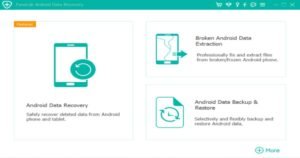
FoneLab is about as plain as recovery gets. Plug the phone in, scan, look through the preview, save what you want. You don’t need to know anything about how Android stores files, which makes it a comfortable choice if this is your first time.
It works on Windows and Mac, lets you restore single files or whole categories, and handles photos, videos, documents and WhatsApp. Like most tools here, the free version only previews. Root requirements vary by device, so check FoneLab’s compatibility page for your model before paying.
Key features of FoneLab:
- Allows you to select individual files or specific categories rather than recovering every item detected during scanning.
- Provides guided steps, allowing data recovery in three simple steps connecting your Android device, scanning and preview, and then recovering selected files.
- Can help you to restore data lost due to accidental deletion, system issues, forgotten access, or other supported recovery situations.
5. MiniTool Mobile Recovery for Android
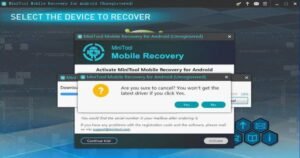
MiniTool is the budget option, and it doesn’t pretend to be anything else. It recovers messages, photos, videos and contacts from phone storage or an SD card, and it supports Samsung, Huawei, HTC, LG, Sony and Motorola phones. There’s a free edition, but it caps how much you can recover.
Beyond that, it’s thin. WhatsApp isn’t really part of what it does, there’s no Google Drive backup support, and it only runs on Windows. Its system requirements still mention Vista and XP, which says something about how often it gets updated. For a couple of deleted photos, it’s fine. After a factory reset, look further up this list.
Key features of MiniTool:
- Covers the core file types most users lose – messages, photos, videos, and contacts.
- Works with both internal phone storage and SD cards.
The Five Tools At A Glance
| Tool | Best for | WhatsApp recovery | Root needed | Free version | Platform |
|---|---|---|---|---|---|
| Stellar Data Recovery for Android | Best overall | Yes, including Google Drive backups | No | Recovers up to 10 files (10 MB each) | Windows |
| Tenorshare UltData for Android | No-root recovery on Mac | Yes | No | Preview only | Windows, Mac |
| Wondershare Dr.Fone | Recovery plus phone tools | Yes | Usually, for deep scans | Preview only | Windows, Mac |
| FoneLab Android Data Recovery | First-time users | Yes | Depends on device | Preview only | Windows, Mac |
| MiniTool Mobile Recovery for Android | Basic free recovery | Not a core feature | Depends on device | Free edition with limits | Windows |
Specs and prices change, so double-check on each vendor’s site before you buy.
Android Data Recovery Software Limitations
No recovery tool can promise everything back, whatever its website says. Newer Android phones encrypt their storage, and that makes deleted files a lot harder to get at, particularly if the phone isn’t rooted. SD cards, recently deleted photos and WhatsApp data with a backup somewhere tend to have the best chance.
This is why the free scan matters so much. Run it, see what turns up, and decide after that.
Wrapping Up: Which One You Should Choose
On Windows, try Stellar first. The free recovery means you lose nothing by testing it. On a Mac, go with Tenorshare UltData. Want extra phone tools as well? Dr.Fone. Just need a couple of photos back and don’t want to pay? MiniTool can probably manage.
And once it’s all sorted, turn on Google Photos backup and WhatsApp’s Drive backup. It’s two minutes of setup now, and you probably won’t need any of this next time.